A form asks for a PDF, but your scan is a JPG. A slide needs a picture, but your page is a PDF. A logo must keep a clear background, but it arrived in the wrong format.
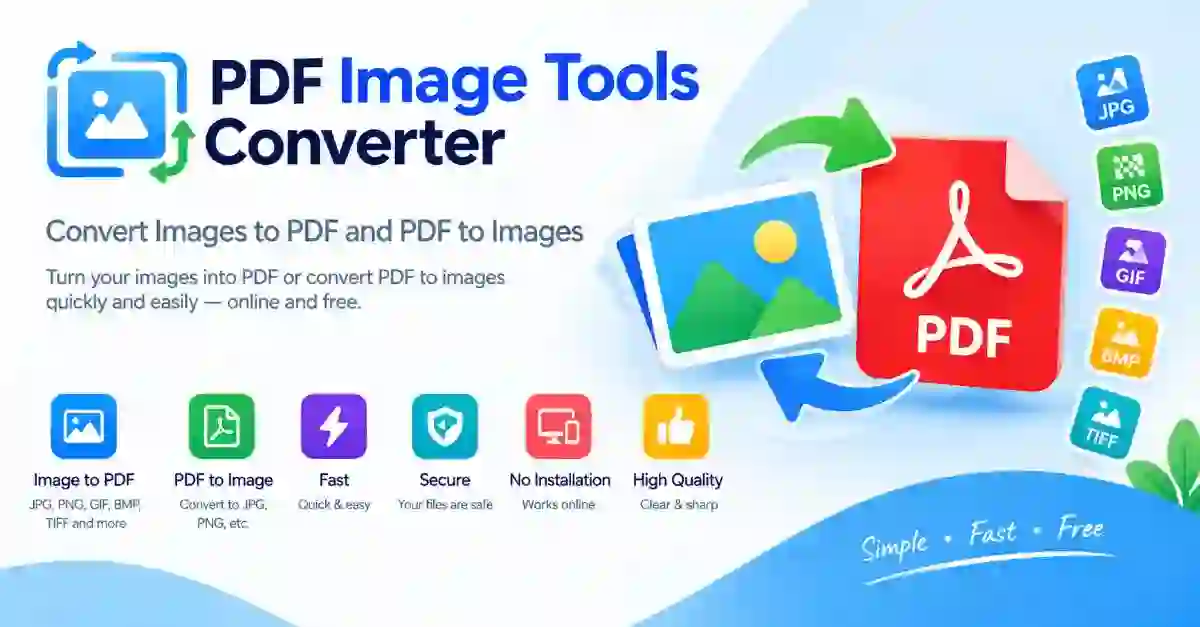
These tools fix those mismatches in a few clicks. They move files between PDF, JPG and PNG, and they run in your browser, so you can prepare a file for sharing, uploading or printing without installing anything. Your file is processed on your own device and never uploaded.
Match your starting file and your goal in the table to find the right tool.
| Task | Use It When |
|---|---|
| JPG to PDF | You want photos or scans in a single PDF for a form or an email |
| PNG to PDF | You want screenshots or graphics in a PDF with sharp edges |
| PDF to JPG | You need pages as light pictures for sharing or posting |
| PDF to PNG | You need pages as sharp images, especially text and line art |
JPG uses lossy compression. It keeps files small and suits photographs, although every save discards a little detail. PNG is lossless and supports transparency, so it suits logos, screenshots and text.
As a rule, choose JPG when size matters most, and PNG when sharp edges or a transparent background matter most. Switching formats does not improve a picture. A JPG converted to PNG keeps the same detail it had, and the file often gets bigger. It does not restore detail that was already lost.
A PDF is the safest way to send pictures to an office, a school or an agency. The pages keep their order and look the same on every device.
Open the tool that matches your image type. Upload your picture, or drag it onto the page. Start the conversion, then download the PDF and open it to check the page. Rotate sideways photos before you convert, and crop away dark borders from scans, so the PDF looks clean. Check the order of the pictures before you make the PDF, since a mixed-up order is the most common mistake.
PDF to JPG and PDF to PNG make a picture from each page. This is useful when a PDF page must go into a presentation, a social post or a website banner, where a document file would not fit.
Choose JPG for a lighter file. Choose PNG when the page has small text or thin lines, because PNG keeps them crisp. Large pages produce large pictures, so resize them afterwards if needed.
Sharpness depends on resolution. A page converted at low resolution looks soft when you zoom in, so choose a higher setting when the image will be printed or shown on a large screen.
For printing, a PDF is usually the most dependable choice, because margins and page size stay fixed. For quick sharing in chat or on social media, a JPG is lighter and opens everywhere.
If a file is too heavy to send, reduce its size before sharing, and check that text is still readable after the change.
Start from the best quality file you have. Convert once, and keep the original untouched, since every conversion loses a little. Open the result and zoom in to look for blur. Rename the final file with clear words, not camera numbers, so you can find it later.
Students hand in scanned work as a single PDF. Professionals send ID copies, receipts and signed pages in the format an office asks for. Designers share a page as a picture or prepare a graphic for print. Content creators turn PDF pages into images for posts and slides. At home, anyone can upload photos to a form that accepts only PDF.
Photos of identity cards, bank papers and medical reports are sensitive. Think before you upload them to any website, avoid public computers, and delete extra copies when the job is done. These tools process your file in your browser, so it is never sent to a server, but the downloaded copy is still yours to look after.
Yes. There is no account and no payment. Upload, convert and download.
No. These tools run in your browser, so your file stays on your device.
For a photo-like scan, JPG is smaller and usually fine. For a scan with sharp text or line art, PNG keeps the edges crisper, though the file will be larger.
Blur usually comes from low resolution or a low-quality source. Start from the clearest file you have, and choose a higher resolution setting when the image will be printed or zoomed in.
Yes. Upload the pictures in the order you want them, check the order before you convert, and they will become pages of a single PDF.
Most format problems are small: the wrong file type for the form, the wrong shape for the slide. Match your starting file to the tool in the table, check the result once, and the file is ready to send, print or post.