
Text Case Converter Fast & Free Online Tool
Convert your text to UPPERCASE, lowercase, Title Case, Sentence case, camelCase, snake_case, and more — instantly, free, and directly in your browser.
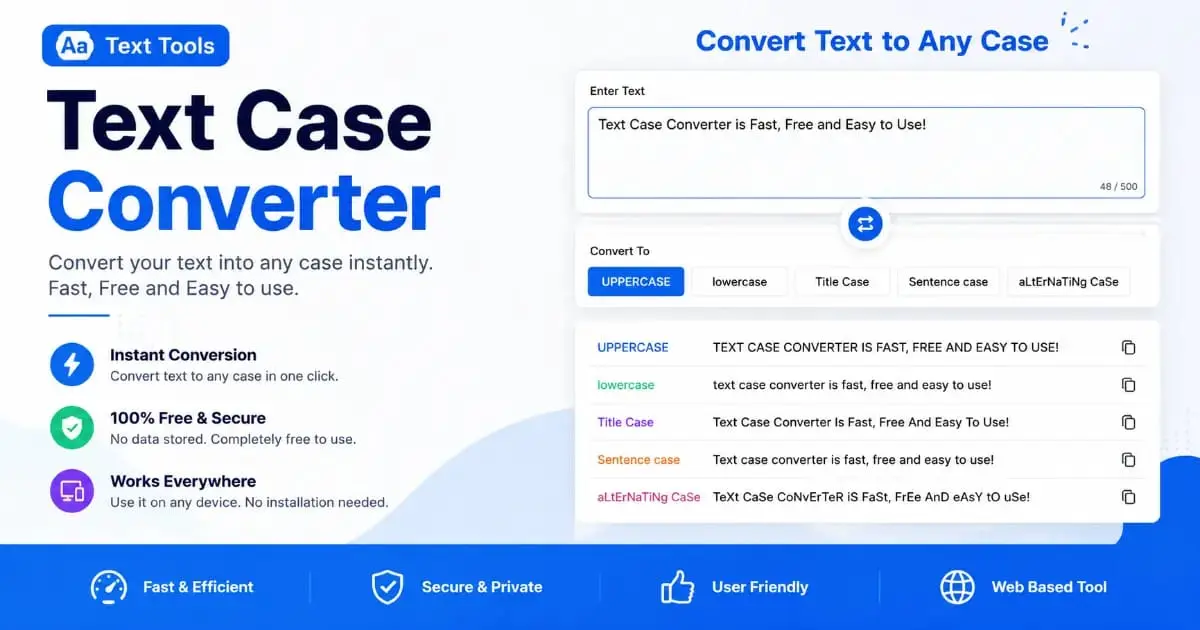
Text Case Converter
Paste your text · Choose a case format · Copy the result instantly
Split PDF and text formatting tools are both essential parts of any modern digital workflow. When you work with documents, presentations, reports, or code every single day, having the right text case format matters just as much as having the right file structure. Our free online Text Case Converter tool lets you instantly change your text between ten different case formats — UPPERCASE, lowercase, Title Case, Sentence case, camelCase, PascalCase, snake_case, kebab-case, CONSTANT_CASE, and alternating case — with one click and no registration required.
If you have ever received a document written entirely in uppercase and needed to quickly reformat it, or if you are a developer who constantly switches between camelCase and snake_case while coding, you already know how tedious manual reformatting can be. Our Text Case Converter eliminates that problem entirely. Paste your text, choose your format, and copy the result — all in under five seconds.
This complete guide explains everything about text case conversion — what every case type means, when to use each one, who benefits from this tool the most, and how it connects to other document management tasks like the split PDF workflow that thousands of professionals use every day.
What Is a Text Case Converter Tool?
A Text Case Converter is an online tool that transforms your text from one letter-case format to another. Letter case refers to whether the letters in a word are written in uppercase (capital letters), lowercase (small letters), or some combination of the two. Different industries, platforms, and use cases have different standard conventions for how text should be formatted.
For example, headlines in newspapers and websites are almost always written in Title Case — where the first letter of each important word is capitalized. Code variable names in Python programming typically use snake_case with underscores between words. JavaScript functions commonly use camelCase where each new word starts with a capital letter except the first. CSS class names use kebab-case with hyphens between words.
Without a tool like ours, changing text between these formats manually would require editing every single word by hand — a slow, error-prone process. Our Text Case Converter does it automatically in under a second, no matter how long your text is. It processes your input directly in your browser, which means your text never leaves your device and nothing is stored on any server.
💡 Did you know? The terms “uppercase” and “lowercase” come from the physical cases that old printing press operators used to store moveable type. Capital letters were stored in the upper case drawer, and small letters were kept in the lower case drawer. Learn more from Wikipedia’s article on letter case and explore MDN’s CSS text-transform documentation.
All Text Case Types Explained
Understanding each text case format helps you choose the right one for your specific task. Here is a complete reference table of all ten case formats supported by our tool, with examples showing exactly how your text will look after conversion.
| Case Type | Example Output | Common Use |
|---|---|---|
| UPPERCASE | HELLO WORLD | Headlines, warnings, acronyms |
| lowercase | hello world | Email addresses, URLs, casual writing |
| Title Case | Hello World | Book titles, page headings, names |
| Sentence case | Hello world | Normal sentences, articles, paragraphs |
| camelCase | helloWorld | JavaScript variables and functions |
| PascalCase | HelloWorld | Class names, React components |
| snake_case | hello_world | Python variables, database columns |
| kebab-case | hello-world | CSS classes, URL slugs, HTML attributes |
| CONSTANT_CASE | HELLO_WORLD | Environment variables, constants |
| aLtErNaTe | hElLo WoRlD | Memes, sarcasm, creative styling |
Each of these formats serves a specific purpose. Knowing which case to use in which context is a fundamental skill in writing, web development, database management, and content creation. Our tool makes switching between them effortless.
Why Use a Text Case Converter?
There are several powerful reasons why writers, developers, designers, and business professionals use a text case converter regularly. Manual case conversion is not just slow — it introduces errors that can cause serious problems in code, databases, and published content.
Speed and accuracy. Manually changing the case of a 500-word document takes several minutes and is highly error-prone. Our tool converts any amount of text in under one second with perfect accuracy. There is no risk of accidentally leaving a word in the wrong case format.
Consistency across teams. When multiple people contribute to a document, codebase, or content library, inconsistent capitalization creates a messy, unprofessional result. A text case converter enforces instant consistency — paste the content, convert it to the agreed standard, and your output is uniform every time.
Fixing imported content. When you copy text from older documents, legacy databases, or third-party sources, it often arrives in the wrong case format. ALL CAPS text from an old system needs to be converted to Sentence case for a modern website. Database column names in one naming convention need to be translated to another. Our tool handles these batch conversions instantly.
No software required. Microsoft Word can change text case through the Format menu, but only between a limited set of options. Our online Text Case Converter works from any browser on any device — no software installation, no subscription, no limits on text length or usage frequency.
Key Features of Our Text Case Converter Tool
Our tool was designed to give writers, developers, and professionals a powerful text formatting experience with zero friction. Here are the features that make it stand out from every other text case tool available online.
10 Case Formats
UPPERCASE, lowercase, Title Case, Sentence, camelCase, PascalCase, snake_case, kebab-case, CONSTANT_CASE, and alternating case.
Live Statistics
Real-time word count, character count, characters without spaces, sentence count, and line count — all updated as you type.
One-Click Copy
Copy the converted output to your clipboard instantly with a single click. No selecting, no dragging — just click and paste.
100% Private
All conversion happens in your browser. Your text is never sent to any server, stored, or logged anywhere.
Mobile Friendly
Fully responsive design works on smartphones, tablets, and desktops without any loss of functionality.
No Text Limit
Convert short phrases or entire documents — there is no character limit, no word limit, and no file size restriction.
Step-by-Step Guide: How to Use the Text Case Converter
Using our tool takes about five seconds. Follow these simple steps to convert any text to any case format instantly.
Select Your Target Case Format
At the top of the tool, you will see ten case format buttons. Click the one you want — for example, “Title Case” or “snake_case”. The active button will highlight in blue. You can change your selection at any time before or after entering your text.
Paste or Type Your Text
Click inside the left text area labeled “Input Text” and paste your content with Ctrl+V (or Cmd+V on Mac), or simply type directly. You will see the word count, character count, and other statistics update in real time as you enter text.
Click “Convert Text”
Press the blue Convert Text button. The converted result appears instantly in the right output panel. The conversion is done entirely in your browser — there is no loading time, no waiting, and no internet connection required after the page loads.
Copy and Use Your Result
Click the “Copy Result” button to copy the converted text to your clipboard. A confirmation message will appear briefly. Now paste your converted text wherever you need it — a document, a code editor, an email, a spreadsheet, or anywhere else.
Try Another Format
Your input text stays in the left panel. Simply click a different case format button and press Convert Text again to see the same input rendered in a completely different format. No need to paste your text again.
Who Uses Text Case Converters?
Text case conversion is needed across a surprisingly wide range of professions and everyday tasks. Here are the groups that benefit the most from our tool every day.
👩💻 Developers & Programmers
Software developers switch between camelCase, PascalCase, snake_case, kebab-case, and CONSTANT_CASE constantly depending on the programming language and context. Our tool makes these conversions instant, reducing the cognitive overhead of manual reformatting during coding sessions.
✍️ Writers & Editors
Content writers, journalists, and editors often receive raw text from multiple sources in inconsistent formats. Converting everything to proper Sentence case or Title Case before publishing ensures professional, consistent presentation across articles, blogs, and digital publications.
📊 Data Analysts
Data professionals working with databases, spreadsheets, and CSV files frequently encounter column names and values in the wrong case convention. Converting data field names from one format to another before importing into a new system is a common and repetitive task that our tool streamlines completely.
Beyond these main groups, text case converters are also widely used by SEO professionals normalizing keyword research data, teachers and academics proofreading student submissions, marketers formatting social media copy, designers creating consistent UI labels, and HR professionals cleaning up imported employee data from legacy systems.
How split PDF Tools Relate to Document Workflows
split PDF tools and text formatting tools like our Text Case Converter are both essential components of the modern document management workflow. When you work with large, complex documents every day, you need two types of tools: tools that help you structure and organize your documents, and tools that help you format and standardize the text inside them.
Consider a typical business workflow. You receive a large multi-section PDF report from a client or partner. You need to split PDF pages into individual sections to distribute them to different departments. After using our split PDF tool to separate the document, you extract the text from each section and need to reformat it for different platforms — some sections go to a website as Title Case headings, others go into a code system as snake_case field names, and others need to be corrected from ALL CAPS legacy formatting into Sentence case for modern readability.
This is exactly where the Text Case Converter and the split PDF workflow connect. The split PDF tool at PixaPDF handles the document-level organization — separating, sectioning, and distributing pages. The Text Case Converter handles the text-level formatting — standardizing, cleaning, and reformatting the content within each section. Together, they form a complete document processing pipeline that saves significant time for any professional who works with text-heavy documents regularly.
Other tools in the PixaPDF suite that complement this workflow include the PDF merge tool for combining documents back together, the rearrange PDF tool for reordering pages before you split PDF sections, and the page numbers tool for adding consistent numbering before you distribute sections. When you split PDF documents into individual pages and then need to reference them in a database or content management system, having the text already in the correct case format makes the entire process smoother and faster.
The relationship between split PDF and text case conversion becomes especially clear in publishing workflows. A publisher might split PDF chapters from a large manuscript using our split PDF tool, then extract chapter titles and headings and run them through the Text Case Converter to ensure consistent Title Case formatting across the entire book. Every step in the workflow contributes to a cleaner, more professional final output.
Text Cases in Programming and Development
In the world of software development, text case is not just a stylistic preference — it is a critical technical convention. Different programming languages and frameworks enforce or strongly recommend specific case formats for different types of identifiers. Using the wrong case in code can cause bugs, failed imports, and broken APIs.
JavaScript and TypeScript
In JavaScript and TypeScript, the standard convention is camelCase for variable names and function names, PascalCase for class names and React component names, and CONSTANT_CASE (sometimes called SCREAMING_SNAKE_CASE) for constants and environment variables. Our tool handles all three of these formats, making it easy to quickly reformat identifier names when refactoring code or migrating between projects.
Python
Python follows the PEP 8 style guide, which specifies snake_case for function names, variable names, and module names. Class names use PascalCase (also called UpperCamelCase in Python documentation). Constants use CONSTANT_CASE. Our snake_case and CONSTANT_CASE converters are widely used by Python developers when working with legacy code that was not written following PEP 8 standards.
CSS and HTML
CSS class names and HTML IDs conventionally use kebab-case — words separated by hyphens with all letters lowercase. This is the standard used by popular frameworks like Bootstrap, Tailwind CSS, and BEM methodology. Our kebab-case converter is especially useful for designers and front-end developers who need to convert design system names, component labels, or content management system field names into proper CSS class name format.
Databases
Database column naming conventions vary by database system and team preference. PostgreSQL commonly uses snake_case. Some older systems use UPPERCASE. GraphQL APIs often use camelCase for field names. When migrating data between systems or generating schema files, our tool helps developers instantly convert column names from one convention to another without tedious manual editing.
Pro Tips for Using Text Case Correctly
Understanding when and how to apply each text case format can make a significant difference in the quality and professionalism of your work. Here are expert-level tips that will help you use text case conversion more effectively.
Title Case has nuanced rules. Standard Title Case capitalizes the first letter of every word. However, style guides like the Chicago Manual of Style and the AP Stylebook specify that short prepositions (in, on, at, by), conjunctions (and, but, or), and articles (a, an, the) should remain lowercase unless they are the first or last word. Our tool implements simple Title Case — first letter of every word capitalized — which works well for most use cases including headings, page titles, and product names.
Sentence case preserves proper nouns. Our Sentence case converter capitalizes only the first letter of the first word in each sentence. It is important to note that proper nouns — names of people, places, brands, and specific products — should always remain capitalized even in Sentence case. After converting, review proper nouns to make sure they are correctly capitalized.
Use snake_case for filenames. When naming files that will be stored on web servers or used as code modules, snake_case is often the safest choice. Unlike kebab-case (which can be misread as subtraction in some systems) or spaces (which create URL encoding problems), snake_case is universally compatible across operating systems, programming languages, and web servers.
camelCase vs PascalCase — know the difference. Both formats capitalize the first letter of each word and remove spaces. The only difference is that camelCase starts with a lowercase letter (helloWorld) while PascalCase starts with an uppercase letter (HelloWorld). In most programming languages, functions use camelCase and classes use PascalCase. Mixing them up will not always cause an error, but it violates community conventions and makes code harder to read.
🔧 More Free Tools from PixaPDF
Online Tool vs Microsoft Word for Text Case Conversion
Microsoft Word has a built-in Change Case feature accessible from the Home tab or by pressing Shift+F3. While useful for basic needs, it has significant limitations compared to our free online tool.
Word’s Change Case menu offers five options: Sentence case, lowercase, UPPERCASE, Capitalize Each Word, and tOGGLE cASE. It does not support camelCase, PascalCase, snake_case, kebab-case, or CONSTANT_CASE — which are all essential for developers and data professionals. Our tool supports all ten formats including all five of the developer-oriented ones that Word completely lacks.
Word also requires the Microsoft Office subscription — which costs money and is only available on Windows and Mac. Our Text Case Converter is completely free, works on any device including smartphones, and requires no installation or account. You can use it from a library computer, a borrowed tablet, or a Chromebook without any limitations.
Google Docs also has a limited built-in case converter under Format → Text → Capitalization. Like Word, it only supports the basic three cases and lacks all the developer formats. For anyone who needs to convert text to split PDF section headings, database field names, CSS class names, or programming identifiers, our specialized tool is the only truly complete solution available for free online.
Frequently Asked Questions
Yes, completely and permanently free. There are no premium features, no usage limits, no account required, and no hidden charges. You can convert as much text as you want in any of the ten supported formats, as many times as you need, at no cost.
No. There is no character limit, word limit, or file size restriction. You can convert a single word, a paragraph, a full article, or an entire document. The conversion happens instantly in your browser regardless of the text length.
Absolutely. All text conversion happens entirely in your browser using JavaScript. Your text is never transmitted to any server, never logged, and never stored anywhere. When you close the browser tab, no trace of your text remains. This makes it safe to use even for confidential content.
Both formats remove spaces and capitalize the first letter of each word, but camelCase starts with a lowercase letter (example: helloWorldText) while PascalCase starts with an uppercase letter (example: HelloWorldText). Developers typically use camelCase for variable and function names, and PascalCase for class names and component names.
Yes, fully. The Text Case Converter is built with a responsive design that works on any screen size. You can use it on iPhone, Android phones, iPads, and Android tablets without any loss of features or functionality. All ten case format buttons, both text areas, and the statistics bar are fully accessible on mobile.
Both tools are part of a complete document management workflow. When you use the split PDF tool to separate sections of a large document, you often need to reformat the text from each section for different uses — such as converting headings to Title Case, converting data field names to snake_case, or fixing ALL CAPS legacy text to Sentence case. The Text Case Converter handles that text-level formatting step quickly and accurately.
Yes. You can paste any amount of text — multiple paragraphs, full articles, or entire documents — into the input field and convert all of it at once. The tool processes line breaks and paragraph structure correctly, applying the selected case format consistently throughout all the text you provide.
Conclusion
A Text Case Converter is one of those tools that seems simple on the surface but saves enormous amounts of time and effort in real daily workflows. Whether you are a developer constantly switching between camelCase and snake_case, a writer standardizing text from multiple sources into consistent Sentence case, or a data analyst converting database column names before a migration — our free tool handles all of it instantly, accurately, and without any registration or cost.
Our tool goes beyond basic uppercase and lowercase to support ten different case formats including the developer-specific camelCase, PascalCase, snake_case, kebab-case, and CONSTANT_CASE that no word processor natively provides. It also gives you live statistics on word count, character count, and sentence count — making it useful as a basic writing analytics tool as well.
And when your text work connects to larger document workflows — like when you need to use our split PDF tool to separate sections of a document, then reformat the extracted text for different destinations — our complete suite of free tools at PixaPDF has you covered from start to finish. You can merge PDF documents, crop PDF pages, protect PDF files with a password, add watermarks, and compress PDF files — all free, all in your browser, all without uploading your files to any external server.
Start using the Text Case Converter right now by scrolling back up to the tool at the top of this page. Paste your text, choose your format, and copy your result in seconds.