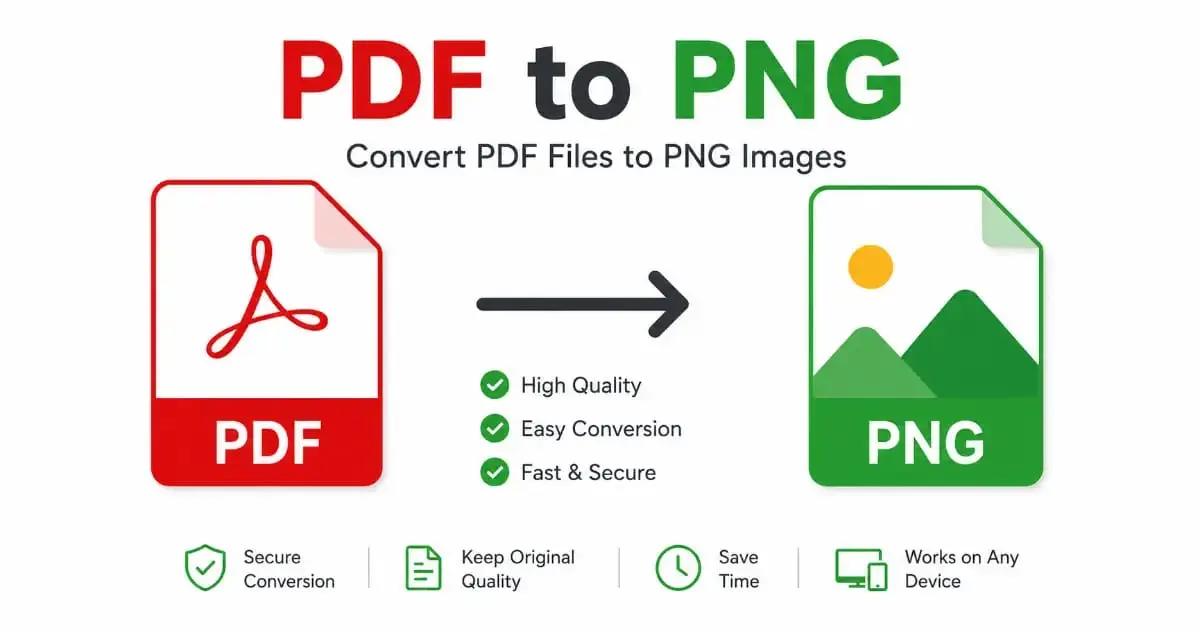
PDF to PNG Image Converter Fast and Easy Tool
Use this free PDF to PNG converter to turn every page of your PDF file into a sharp, high-quality PNG image in seconds. Upload a document, preview each converted page, and download individually or as a ZIP — all directly in your browser.
PDF to PNG Converter
Upload a PDF below and convert PDF to PNG instantly, page by page.
Drag & drop your PDF file here
or click below to browse from your device
Preview & Download
Every converted PDF page will appear here as a separate PNG image.
No PDF uploaded yet. Add a file to get started.
Introduction
PDF to PNG conversion is one of the most useful tricks for anyone who regularly shares, presents, or edits documents. Whether you need to drop a single contract page into a slide deck, post a scanned certificate on a website, or pull a diagram out of a report for editing, turning a PDF page into a PNG image makes the content far easier to work with. This page introduces a completely free, browser-based tool that renders every page of your PDF as a separate high-quality PNG image, without installing any software or sending your files to a remote server.
In the sections below, you will learn exactly what this tool does, why converting a document into image form is so useful, how to use the converter step by step, and where this kind of conversion helps most in daily work. We have also included several structured tables that summarize features, benefits, and frequently asked questions, so you can find what you need quickly.
This guide is written in plain, beginner-friendly language. You do not need any design or technical background to follow along — by the end, you will understand exactly how the tool works and how to get clean PNG images out of any PDF document in just a few clicks.
Documents and images serve different purposes, and knowing when to switch between them can save a surprising amount of time. A PDF is built to preserve layout across printers and screens, bundling text, fonts, and graphics into pages that behave the same way everywhere they are opened. A PNG, on the other hand, is a flat picture — perfect for dropping into a slide, a webpage, or a chat message without asking the recipient to open a separate document viewer. This guide walks through exactly how a PDF to PNG conversion happens, what to expect from the output, and how to avoid the few common mistakes that trip people up the first time they try it.
What Is a PDF to PNG Converter Tool
A PDF to PNG converter tool is a utility that takes each page inside a PDF document and renders it as a standalone PNG image. Unlike a PDF, which is a container format capable of holding text, vector graphics, fonts, and multiple pages together, a PNG file represents a single flat image made of pixels. Converting from one to the other essentially takes a “snapshot” of each page exactly as it would appear when printed or viewed on screen.
This particular tool works entirely inside your web browser using a JavaScript rendering engine that understands the PDF file format. When you upload a document, the browser reads the internal structure of the PDF, draws each page onto a hidden canvas element at a resolution you choose, and then exports that canvas as a PNG file. Because everything happens locally on your device, there is no waiting for an upload to finish and no risk of your document being stored somewhere you cannot see.
It is worth noting that a PDF-to-PNG conversion is a one-way visual snapshot. Any text inside the original PDF becomes part of the image itself and is no longer selectable or searchable once converted. If you need to keep the text editable, a PNG is not the right output — but if you need a page to look exactly right in a picture format, this is exactly the tool for the job.
Under the hood, the rendering process relies on a technology called a rendering engine, which understands the internal instructions stored inside a PDF: where each line of text sits, which font it uses, where images are placed, and how vector shapes like lines and curves should be drawn. The browser interprets these instructions and paints them onto an invisible canvas at whatever resolution you request. A higher resolution setting simply tells the renderer to draw everything larger and with more pixel detail before saving the final image, which is why documents with small text or fine diagrams often look noticeably sharper when a higher output quality is selected.
Why Use This PDF to PNG Converter
There are many PDF conversion tools online, but most of them route your document through a remote server before returning a result. This tool takes a different, more private approach: every page is rendered directly in your browser, so the file you upload never actually leaves your device. This matters if you are working with contracts, ID documents, medical paperwork, or any file you would rather not send to an unfamiliar third-party server.
Speed is another advantage. Because there is no upload step to wait for, larger documents still convert quickly, and you can watch each page appear in the preview panel as soon as it finishes rendering. If you only need one page out of a longer document, you do not have to wait for the whole file to be processed on a distant server queue.
Cost and convenience also matter. Desktop software that converts PDF pages into images often comes bundled inside larger, paid PDF suites. This tool skips all of that. It works the same way on a phone, tablet, or laptop, requires no installation, and does not ask for an account or payment before you can use it.
Reliability across different PDF sources is another quiet benefit. Documents arrive from many different places — scanned paperwork from a phone camera app, exported reports from spreadsheet software, contracts generated by legal platforms, or slides exported from a presentation tool. Each of these sources can structure the underlying PDF slightly differently. Because this converter relies on a widely used, actively maintained rendering engine rather than a custom-built parser, it handles this variety gracefully instead of failing on anything outside a narrow set of expected file types.
Key Features
This PDF to PNG converter was built with real workflows in mind — the kind where you just need a quick, dependable image out of a document without any fuss.
- Multi-page support: Every page inside your PDF is automatically detected and converted into its own PNG image.
- Adjustable output quality: Choose between standard, high, and maximum resolution depending on how the image will be used.
- Instant preview: Each converted page appears as a thumbnail so you can check the result before downloading.
- One-click downloads: Save each PNG individually, or download every page together in a single ZIP file.
- Drag-and-drop upload: Drop your PDF directly onto the upload area, or browse for it from your device.
- Built-in error handling: The tool clearly flags unsupported files and password-protected PDFs that cannot be read.
- No installation required: Works entirely inside your browser on Windows, Mac, Linux, Android, and iOS.
Each of these features exists because real users need them: professionals who need speed, students preparing assignments, and privacy-conscious users who do not want a document touched by an unfamiliar server. Try any of them yourself using the converter tool above.
Feature Comparison Table
| Feature | This Tool | Typical Desktop Software | Typical Server-Based Tool |
|---|---|---|---|
| Cost | Free | Often Paid | Free or Freemium |
| Installation Needed | No | Yes | No |
| Privacy (files stay on device) | Yes | Yes | No |
| Multi-Page Conversion | Yes | Sometimes | Sometimes |
| Adjustable Resolution | Yes | Sometimes | Rarely |
| Works on Mobile | Yes | No | Yes |
Step-by-Step Guide: How to Convert PDF to PNG
Converting PDF to PNG with this tool only takes a few moments. Follow the steps in the table below to get your PNG images.
| Step | Action | What Happens |
|---|---|---|
| 1 | Open the converter tool | The upload panel appears with a drag-and-drop area. |
| 2 | Upload your PDF file | Drag the file into the box or click “Choose PDF File” to browse. |
| 3 | Pick an output quality | Select standard, high, or maximum resolution for the PNG output. |
| 4 | Click “Convert to PNG” | Every page in the PDF is rendered as a separate PNG image. |
| 5 | Preview each page | Thumbnails of every converted page appear in the right-hand panel. |
| 6 | Download your files | Save each PNG individually or grab all of them together as a ZIP file. |
Benefits of Using an Online PDF to PNG Converter
Choosing to convert PDF to PNG has several real, practical benefits for everyday work and study.
| Benefit | Description |
|---|---|
| Easy Embedding | PNG images drop cleanly into slide decks, documents, and websites without special PDF viewers. |
| Sharper Screenshots | Rendered pages stay crisp, keeping small text and fine lines readable. |
| No Special Software Needed | Recipients can open a PNG in any browser or image viewer, unlike some PDF plugins. |
| Simple Social Sharing | A single PNG page is far easier to post or send than an entire PDF document. |
| Consistent Appearance | The image looks exactly the same on every device, since fonts and layout are already “baked in.” |
Common Use Cases
People convert PDF to PNG for many different reasons. The table below highlights the situations where this tool is especially handy.
| Use Case | Why PNG Is a Better Fit |
|---|---|
| Presentation slides | A PNG page can be dropped straight into a slide without a PDF viewer plugin. |
| Website graphics | Web pages display PNG images natively, unlike embedded PDF files. |
| Social media posts | Image formats are required by most social platforms instead of documents. |
| Design mockups | Designers often need a flattened image version of a printed layout for reference. |
| Archiving scanned pages | Individual PNG pages are easy to organize, tag, and search visually. |
| Emailing a single page | Sending one image avoids forcing the recipient to open a large multi-page file. |
If your original PDF has pages in the wrong order, it often helps to use a page rearranging tool first, so that the pages come out in the correct sequence once they are converted into PNG images.
Freelancers and small business owners run into this need constantly. An invoice exported as a PDF might need to become a PNG for a quick preview in a chat app, or a signed agreement might need to be dropped into a project management tool that only accepts images. Rather than installing separate software for each of these small jobs, a single browser tab handles the conversion in seconds, leaving more time for the actual work.
PDF vs PNG: A Quick Comparison
Understanding the difference between the two formats makes it clear why so many people choose to convert PDF to PNG before sharing a single page.
| Aspect | PNG | |
|---|---|---|
| Content Type | Multi-page document container | Single flat image |
| Text Searchable | Usually Yes | No (text becomes part of the image) |
| Best For | Reports, contracts, forms | Screenshots, graphics, single-page previews |
| Compression | Varies by content | Lossless |
| Universal Preview Support | Needs a PDF viewer | Opens in any browser or image app |
Working With Large or Complex PDF Files
Not every PDF to PNG conversion is instant. Some PDFs are simple single-page flyers, while others run to dozens of pages packed with images, tables, and embedded fonts. Larger files naturally take a little longer to render, since each page has to be drawn individually before it can be saved as an image. If your document is very large, consider using a PDF splitting tool first to break it into smaller sections, or a PDF compressor to shrink the file size before converting, especially if the original document contains large scanned images.
If you ever need to combine several separate documents into a single file before converting them together, a PDF merging tool can join multiple PDFs into one, so every page ends up in a single, organized batch of PNG images.
Handling Protected or Locked PDF Files
Occasionally a PDF cannot be opened because it is protected with a password, or because editing permissions have been restricted by the original author. Browser-based tools like this one are not able to read the contents of an encrypted PDF until it has been unlocked. If you run into this situation, an unlock PDF tool can remove the password so the file can be opened normally. On the other hand, if you are the one creating a document and want to prevent unauthorized editing after sharing it, a protect PDF tool lets you add a password of your own once you are finished working with it.
Related PixaPDF Tools
This converter is part of a larger toolkit of free, browser-based document and image tools. Explore these related tools for your next project:
Common Mistakes to Avoid When Converting PDF Pages
A few small missteps can turn an otherwise quick PDF to PNG conversion into a frustrating experience. Keeping these points in mind will help you get clean results the first time.
- Choosing too low an output quality: Standard resolution is fine for a quick preview, but text-heavy pages usually look far better at high or maximum quality.
- Uploading a locked file without unlocking it first: Password-protected PDFs need to be unlocked before any browser-based tool can read their contents.
- Expecting selectable text in the output: A PNG is a flattened picture, so any text in the original page can no longer be copied or searched after conversion.
- Converting very large documents on an older device: Phones or computers with limited memory may slow down when rendering dozens of high-resolution pages at once.
- Losing track of page order: When exporting many pages from one document, keep an eye on the page numbers in each downloaded file name so nothing gets mixed up later.
Security and Privacy Considerations
Whenever you run a PDF to PNG conversion online, it is worth knowing where your file actually goes. Documents often contain far more sensitive information than a typical photo — signatures, account numbers, medical details, or confidential business terms. Many online PDF tools quietly upload your file to a remote server before returning a result, which means the document passes through infrastructure you cannot inspect, even briefly. This converter avoids that step entirely by rendering every page locally, using the processing power already built into your browser.
Because the file never leaves your device, there is no upload to intercept and no temporary server copy to worry about. This also means the tool keeps working even on a slow or unreliable internet connection, since there is no dependency on transferring a large file to a distant server and waiting for it to come back.
Compatibility Across Devices and Software
One of the biggest advantages of converting a page into PNG format is universal compatibility. Every modern browser, operating system, and image viewer can open a PNG file without any special plugin, unlike a PDF, which sometimes needs a dedicated reader depending on the device.
| Platform | PNG Support | Notes |
|---|---|---|
| Windows | Full support | Opens natively in Photos, Paint, and every major browser. |
| macOS | Full support | Opens directly in Preview and Photos without conversion. |
| Android | Full support | Displays instantly in the default gallery and messaging apps. |
| iOS | Full support | Fully compatible with Photos and Safari. |
| WordPress and CMS platforms | Full support | PNG is one of the standard accepted media formats for uploads. |
Because this tool runs directly in the browser, the exported PNG files are ready to use the moment they finish converting — no extra compatibility checks or file conversions needed before sharing them anywhere else.
Frequently Asked Questions
| Question | Short Answer |
|---|---|
| How do I convert PDF to PNG for free? | Upload your PDF to the tool above and click Convert — no cost, no signup. |
| Is my document safe? | Yes, everything is processed locally in your browser. |
| Does it reduce image quality? | No, output is rendered at high resolution using lossless PNG. |
| Can I convert every page at once? | Yes, multi-page PDFs are fully supported. |
| What if my PDF has a password? | Unlock it first with a dedicated unlock tool, then convert normally. |
Conclusion
Learning to convert PDF to PNG might seem like a small task, but it solves a very common problem: PDFs are not always easy to drop into slides, websites, or social posts, while PNG images are. Whether you are a student pulling a diagram out of a textbook chapter, a professional preparing a slide deck, or a business owner sharing a single scanned page, a reliable PDF to PNG tool ensures every page comes out sharp, private, and ready to use anywhere. This free, browser-based converter makes that process effortless — no installations, no uploads to third-party servers, and no compromise on image quality. Try it above and see how quickly your PDF pages turn into clean, high-quality PNG images.
Further Reading
To learn more about the technical foundations behind this tool, see the official PDF specification (ISO 32000-2), the PNG image format specification from the W3C, Adobe’s own PDF documentation and basics guide, and Google’s image optimization best practices for keeping converted images fast-loading on the web.