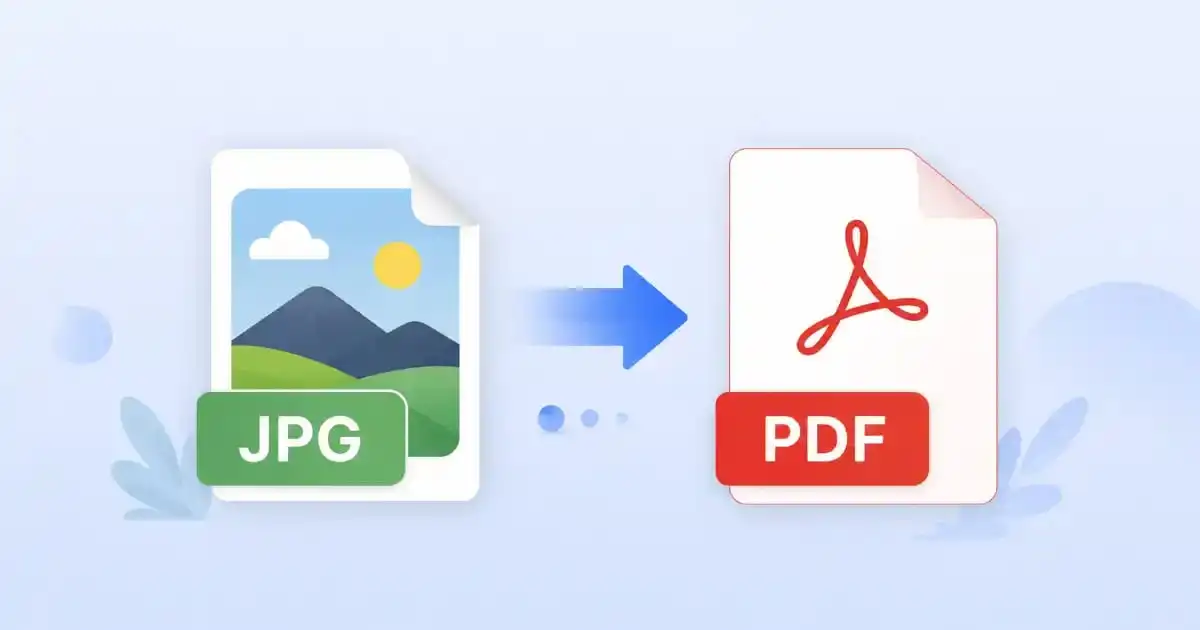
JPG to PDF Converter Fast & Secure Free Online Tool
Convert your JPG images to a professional PDF file instantly. Upload multiple images, drag to reorder, and download in seconds — no account needed.
JPG to PDF Converter
Upload images below · Drag to reorder · Click Convert to download your PDF
🔒 Images are processed in your browser only. Nothing is uploaded to any server.
JPG to PDF conversion is one of the most common tasks people need online every day. Whether you are a student, a business professional, or someone working from home, you will often need to turn your image files into a proper PDF document. Our JPG to PDF converter tool makes this process fast, simple, and completely free — with no registration required.
If you have ever struggled to share photos or scanned documents as image files, you already know the problem. Image files like JPG and PNG are not always accepted by offices, schools, or clients. A PDF file is more professional, easier to send by email, and can be opened on any device in the world without losing quality.
This guide will explain everything you need to know about converting JPG to PDF online. You will learn what the tool does, how to use it step by step, what features make it special, and why it is trusted by thousands of users every day.
What Is a JPG to PDF Converter Tool?
A JPG to PDF converter is an online tool that takes one or more image files — in formats like JPG, JPEG, or PNG — and combines them into a single PDF document. The word “PDF” stands for Portable Document Format. It is a file format created by Adobe that is used around the world for sharing documents reliably.
When you convert a JPG to PDF, the image is placed inside a PDF container. This means the image quality stays exactly the same, the file becomes easier to share, and the document can be printed or emailed without any formatting problems.
Our JPG to PDF tool works entirely inside your web browser. No software installation is needed. You do not need to create an account. And your files are never uploaded to any server — everything happens locally on your own device, which keeps your images completely private and secure.
💡 Did you know? PDF is the most widely used document format in business. Over 2.5 trillion PDF files exist in the world today. Converting your JPG images to PDF instantly makes them more professional and universally compatible. Learn more about PDF standards at Adobe and the official PDF ISO standard.
Why Should You Use This JPG to PDF Converter?
There are many online tools that claim to convert JPG to PDF. But most of them have hidden fees, file size limits, or they upload your private images to a remote server. Our tool is different. Here is why people choose it every day.
First, it is completely free. You can use it as many times as you want without paying anything. There are no premium plans needed to convert images. Second, it works privately. Your images stay on your computer. They are never sent to any server, which protects your personal or confidential documents. Third, it is extremely fast. Since the conversion happens in your browser using modern JavaScript, you get your PDF within seconds — even with multiple large images.
Fourth, you can upload multiple images at once. If you have 10 scanned pages from a document, you can upload all of them, arrange them in the right order, and produce one clean PDF file. This saves a lot of time compared to tools that only handle one image at a time.
Key Features of Our JPG to PDF Converter
Our tool was built with real users in mind. Here are the features that make it stand out from other converters available online.
Multi-Image Upload
Select and upload dozens of JPG or PNG files in one click.
Drag & Drop Ordering
Rearrange your images in any order before converting to PDF.
Browser-Only Privacy
No uploads to servers. Your images never leave your device.
High Quality PDF
Choose your image quality level from 60% to 100% for the perfect output.
Page Size Options
Choose A4, Letter, A3, or fit the page exactly to your image size.
Instant Download
Get your finished PDF file with one click. No email required.
Step-by-Step Guide: How to Convert JPG to PDF
Using our JPG to PDF converter is straightforward. Follow these steps and you will have your PDF ready in less than a minute.
Upload Your Images
Click the “Browse Files” button or drag and drop your JPG, JPEG, or PNG files directly onto the upload area. You can select as many images as you need.
Arrange the Order
After uploading, you will see all your images listed. Drag them up or down to put them in the exact order you want them to appear in the PDF. Remove any unwanted images with the X button.
Choose Your PDF Settings
On the right side, select your preferred page size (A4, Letter, A3, or fit to image), choose portrait or landscape orientation, and adjust the image quality and page margin sliders to your liking.
Click “Convert to PDF”
Press the blue Convert button. The tool will process all your images inside the browser and create a single PDF file in seconds. A progress bar shows you the current status.
Download Your PDF
Once processing is complete, a green Download button appears. Click it to save the PDF directly to your computer or phone. Your file is ready to share, print, or email.
Benefits of Converting JPG to PDF Online
When you convert JPG images into a PDF document, you gain many practical advantages. Here are the most important benefits that people experience every day.
Smaller file size, easier sharing. A single PDF containing multiple images is much easier to email than a collection of separate image files. Most email services have attachment size limits. A PDF file is usually more compact and easier to send.
Better document organization. PDF files keep all your images in a fixed, ordered layout. When you share a JPG to PDF document, the recipient sees exactly what you intended, in the exact order you arranged, with no confusion about which file comes first.
Universal compatibility. PDF files can be opened on Windows, Mac, iOS, Android, and Linux without any special software. Almost every device in the world can open a PDF file using free tools like Adobe Reader or the built-in PDF viewer in web browsers. You can read more about how PDF works on Wikipedia or explore Adobe’s PDF specifications for deeper technical understanding.
Professional presentation. Sending a PDF looks far more professional than sending raw image files. Whether you are submitting work to a university, sharing a report with a client, or applying for a job, a PDF creates a much better impression.
Preserves image quality. Our tool gives you full control over the image quality inside the PDF. If you need a small file size, you can reduce the quality slightly. If you need maximum sharpness, you can keep it at 100%. Either way, the output is clean and clear.
Who Uses JPG to PDF Conversion? Common Use Cases
Converting JPG to PDF is useful for nearly everyone. Here are the most common groups of people who benefit from this tool every day.
🎓 Students
Students often need to scan handwritten notes, assignments, or drawings and submit them as PDF files. Instead of sending 10 separate JPG images, they can combine everything into one professional PDF document using our free tool.
💼 Business Professionals
Business teams frequently need to share receipts, invoices, product photos, or presentations as PDF files. Converting JPG to PDF lets them combine all visuals into a single organized document for clients or colleagues.
📸 Photographers
Photographers can use the tool to compile photo portfolios or delivery albums into PDF format. Clients prefer receiving a clean PDF instead of downloading a folder of image files from a cloud service.
Beyond these main groups, our JPG to PDF converter is also popular with lawyers digitizing case documents, medical staff organizing patient records, real estate agents sharing property photos, and teachers preparing illustrated lesson materials. The use cases are virtually endless.
🔧 More Free PDF Tools You Might Need
Tips for Getting the Best Results
To make sure your JPG to PDF output looks exactly how you want it, here are some simple tips that experienced users follow.
Use high-resolution images. The better your original JPG quality, the sharper and cleaner your PDF will look. If you have scanned documents, scan them at 300 DPI or higher for the best results when converting JPG to PDF.
Name your files in order before uploading. If you have images named in sequence — like page_01.jpg, page_02.jpg — your file browser will usually select them in the right order. This saves you time rearranging them in the tool.
Use “Fit to Image” for irregular sizes. If your images are unusual sizes (like photos from a phone or screenshots), select the “Fit to Image” page size option. This creates a PDF where each page is exactly the size of the original image, with no blank borders.
Reduce quality for large files. If you have many large images and want a smaller PDF file size, lower the quality slider slightly. A setting of 80–85% still looks very good for most documents while producing a significantly smaller output file.
Why Client-Side Conversion Matters
Most online conversion tools upload your images to a remote server, process them there, and then send the result back to you. This creates a serious privacy risk. Your personal photos, scanned ID documents, confidential business papers, or medical records travel over the internet and get stored — at least temporarily — on someone else’s server.
Our JPG to PDF converter works entirely inside your web browser. The moment you select your files, they stay on your computer. They are read by JavaScript running in your browser tab. The PDF is also built in your browser and downloaded directly to your device. At no point does any image data leave your machine. This is the safest possible way to convert images to PDF online.
For businesses and individuals dealing with sensitive information, this is especially important. From a regulatory standpoint — particularly in regions covered by GDPR or HIPAA — a client-side tool eliminates data handling risks entirely.
Advanced Use Cases for JPG to PDF Conversion
Beyond the basic uses, converting JPG to PDF opens up some powerful workflows that can save significant time for power users.
Building document archives. Businesses that have physical paper records can scan them as JPG images and then convert those images to PDF for permanent digital archiving. This makes searching, organizing, and retrieving records much easier. After converting your JPG files, you can further organize your archives using our PDF merge tool or rearrange PDF pages tool.
Creating eBooks and reports. Writers and content creators who design their pages visually — using image editing software — can export each page as a JPG and then use this tool to combine them all into a single professional PDF ebook or report. If the file becomes too large, our PDF compressor can help reduce its size.
Preparing legal documents. Lawyers and legal professionals often need to compile exhibits, evidence photos, or signed documents into an ordered PDF binder. Our tool makes this easy, and the resulting PDF can be secured using our PDF password protection tool if confidentiality is needed.
Marketing materials. Marketers can convert product photos and design assets into PDF brochures or catalogs. You can also add page numbers afterward using our page numbering tool to create a polished final document.
Is It Safe to Convert JPG to PDF Online?
With most online tools, the answer to this question involves some level of trust in a third-party server. With our tool, the answer is simply: yes, it is completely safe. Here is why.
All image processing happens inside your web browser using JavaScript. Your images are never transmitted over any network. Our website does not have any backend server that receives your files. There are no hidden scripts that copy or store your data. You can verify this by checking your browser’s network activity tab while using the tool — you will see no file upload traffic.
Additionally, the PDF that gets created stays in your browser’s memory only until you click download. Once you download it and close the tab, no trace of the file remains on any server. This means that even if someone intercepted your web traffic, they would find nothing, because no file transfer ever takes place.
Frequently Asked Questions
Yes, completely free. There are no hidden fees, no premium plans, and no limits on how many times you can use it. You do not need to register or create an account. Just open the tool, upload your images, and convert.
You can upload as many images as you need. The tool is only limited by the memory available in your browser. Most modern browsers can handle 30–50 high-resolution images comfortably. You can also add more images after your initial upload using the “Add More Images” button.
Yes. The tool is fully responsive and works on smartphones and tablets running iOS, Android, or any other modern operating system. You can select images from your camera roll, reorder them, choose settings, and download the PDF directly to your phone.
Only if you intentionally reduce the quality slider. At 100% quality (the default is 92%), your images are placed in the PDF with no visible loss of sharpness or detail. The quality slider lets you balance file size against image quality based on your needs.
The tool accepts JPG, JPEG, and PNG image files. These are the most common image formats used in everyday life, covering virtually all photos taken by smartphones and cameras, as well as screenshots and web graphics.
No. The converter runs entirely in your web browser. You just need a modern browser like Chrome, Firefox, Safari, or Edge. No plugins, extensions, or downloads are required to convert JPG to PDF using this tool.
Yes. After downloading your converted PDF, you can use our free Split PDF tool to separate the document into individual pages or sections. You can also use our Crop PDF tool to adjust the visible area of any page.
How Our Tool Compares to Desktop Software
Many people are used to using desktop software like Adobe Acrobat to convert JPG to PDF. While those programs are powerful, they come with significant disadvantages for everyday users. Adobe Acrobat Pro costs over $200 per year as a subscription. Other tools like Foxit PDF or Nitro PDF also require paid licenses. Our online JPG to PDF converter is completely free and available from any browser without any installation.
Desktop software also ties you to one computer. If you are at work, at school, or using a borrowed laptop, you cannot access your paid software. Our web-based tool is available from anywhere — any device, any operating system, any browser. You simply open the page and start converting.
Another limitation of desktop software is that it requires regular updates and can sometimes conflict with other programs on your computer. A browser-based tool like ours is always up to date because it runs directly from the web. There is nothing to install, update, or maintain on your side.
How to Convert JPG to PDF on Different Devices
On Windows PC or Mac
Open any modern web browser such as Google Chrome, Firefox, Safari, or Microsoft Edge. Navigate to this page and use the upload area at the top. Select your image files, adjust settings, convert, and download. The process is identical on Windows and Mac.
On iPhone or iPad
Open Safari or Chrome on your iOS device. Go to this tool page and tap “Browse Files.” Your device will let you pick photos from your camera roll or from Files. After uploading and converting, the PDF will download automatically through your browser’s download manager.
On Android Phone or Tablet
Open Chrome or any browser on your Android device. Navigate to this page and tap the upload area. You can select photos from your gallery or from Google Drive. After conversion, the PDF will be saved to your Downloads folder automatically.
Understanding PDF Quality and File Size
One of the most common questions people ask about JPG to PDF conversion is how it affects the quality and file size of their images. Here is a simple breakdown to help you make the right choices.
When you set the quality slider to 100%, each image inside the PDF will look as sharp and detailed as the original. However, this produces the largest file size. A collection of ten high-resolution phone photos at 100% quality could produce a PDF that is 30–50 megabytes in size.
At 85% quality, the visual difference is nearly undetectable to the human eye for most images. But the file size drops significantly — often by 40–60%. This is a great balance for everyday use. For academic submissions, business documents, or email attachments, 80–90% quality is usually ideal.
If you need to reduce your PDF size further after converting, you can use our free PDF compressor tool to reduce the file size even more without visible quality loss. This is useful when you need to fit a document within an email attachment limit or upload size restriction.
For printing purposes, always use 90–100% quality. Printers resolve at 300 DPI or higher, and any quality loss will be visible in the final printed output. Keep quality at maximum when preparing documents for physical printing.
Privacy and Security Explained
In a world where data privacy is increasingly important, it matters where your files go when you use an online tool. Many free online converters are free because they collect and process your data — sometimes scanning document contents, building user profiles, or selling information to advertisers.
Our JPG to PDF converter does not collect any data. When you open this page, no tracking pixels or analytics scripts are recording what images you upload. The tool runs as a self-contained JavaScript application inside your browser tab. When you close the tab, all traces of your uploaded images disappear from memory.
This is especially important for sensitive documents. If you are converting scanned identification documents, medical records, legal contracts, bank statements, or personal photographs, you should use a tool that keeps your files private. Our client-side converter is designed specifically to meet that need, giving you the convenience of an online tool with the privacy of local software.
Conclusion
Converting JPG to PDF has never been easier or more secure. Our free online tool gives you everything you need to turn your image files into professional PDF documents in seconds. Whether you are a student submitting assignments, a professional sharing reports, or simply someone who wants to organize their photos into a clean document, this tool was built for you.
The key advantages are clear: it is free, it is private, it is fast, and it works on every device. There are no watermarks on your output, no file upload to external servers, and no registration required. Your images stay on your computer from start to finish.
Start using the JPG to PDF converter right now by clicking the tool at the top of this page. And if you need to do more with your PDF after converting it — whether that means merging it with other documents, adding page numbers, protecting it with a password, or compressing it for email — explore the full suite of free tools available at PixaPDF Tools. Every tool is designed with the same principles: fast, free, and completely private.
We hope this guide has answered all your questions about converting JPG to PDF online. If there is anything you would like us to add or improve, the tool and this article are updated regularly based on user feedback. Thank you for choosing our free JPG to PDF converter.