
Protect PDF Fast & Secure Free Online Tool
Add password protection to your PDF file in seconds. Set open and owner passwords, control permissions, and download your secured PDF instantly — no account needed.
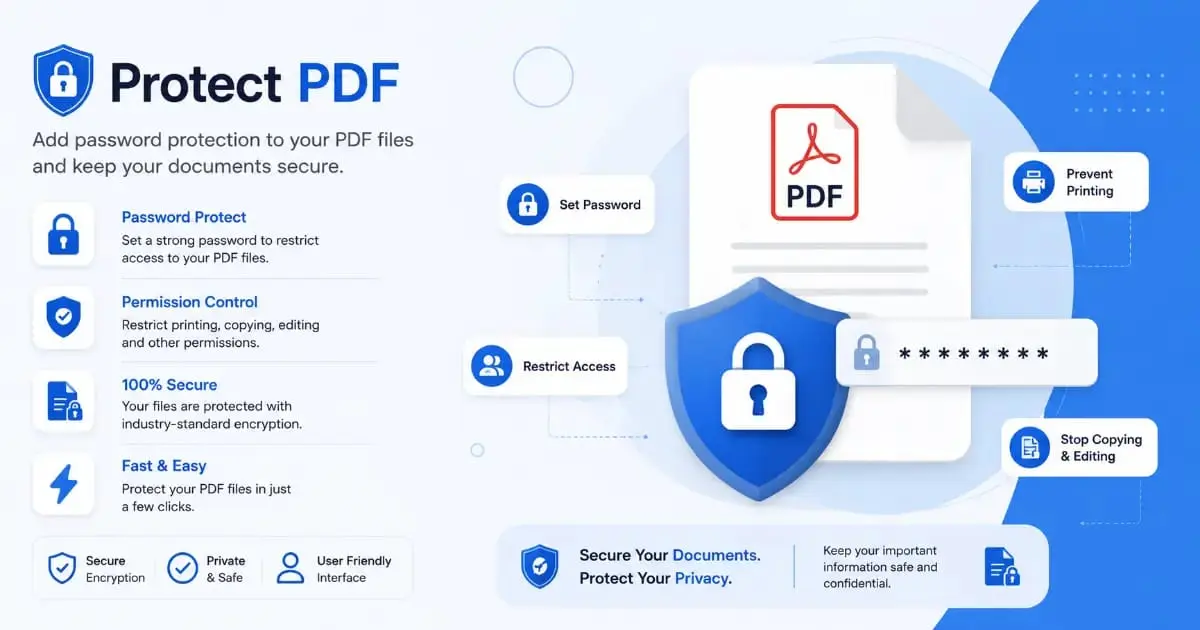
PDF Protect Tool
Add a password to your PDF file. Everything runs in your browser, nothing is uploaded to a server.
Drop your file here or click to browse
Only .pdf files are accepted
Protect PDF files are the most secure way to share sensitive documents in today’s digital world. Whether you are sending a confidential business contract, a personal financial report, a medical record, or any private document, adding password protection ensures that only the right people can open and read your file. Our free online Protect PDF tool makes this process instant, private, and completely free — with no registration and no software required.
Every day, millions of PDF documents are shared by email, messaging apps, and cloud storage platforms. Without password protection, any person who receives or intercepts that file can open it instantly. A protect PDF approach changes that entirely. With just one password, you can lock your document so that only someone who knows the password can access the content.
This complete guide covers everything you need to know about how to protect PDF files online — what the tool does, how password protection works, what encryption means in simple terms, who needs it, and how to use our tool step by step. By the end, you will be able to protect any PDF in under 60 seconds.
What Is a Protect PDF Tool?
A Protect PDF tool is an online application that adds password encryption to an existing PDF document. When you protect a PDF, the file becomes locked — anyone who tries to open it will see a password prompt before the content is revealed. Without the correct password, the document remains completely unreadable.
There are two types of passwords you can apply when you protect PDF documents. The first is an open password, sometimes called a user password, which is required just to view the file. The second is an owner password, also called a permissions password, which controls what recipients can do with the PDF — such as printing, copying text, or making edits. Our tool supports both.
Our Protect PDF tool runs entirely inside your web browser. When you upload a PDF and set a password, the encryption is applied locally on your device using JavaScript. No file data is ever transmitted to a server. This means that even if the internet connection drops during the process, your document stays on your machine and your privacy is never at risk.
🔐 Industry Standard: Our tool uses AES-128 encryption — the same standard recommended by the US National Institute of Standards and Technology (NIST) and the ISO PDF standard. It is considered unbreakable by current computing technology. Learn more about PDF security on Wikipedia.
Why Should You Protect Your PDF?
Protect PDF measures are no longer optional — they are essential for anyone sharing important documents digitally. Here is why password protection matters and why more people are using it every day.
First, email is not secure by default. When you send a PDF by email, it travels through multiple servers before reaching the recipient. Any server along the path could theoretically intercept the file. If your PDF is protected, the intercepted file is worthless to anyone without the password.
Second, shared cloud storage can be accidentally public. Many people store documents in Google Drive, Dropbox, or OneDrive and accidentally share a link that gives anyone access. If your protect PDF password is set, even a person with the wrong link cannot read the content.
Third, forwarding is inevitable. You send a private document to one trusted person, but they forward it to someone else without thinking. A protect PDF password means the forwarded copy is still locked and cannot be opened without the password you shared only with the intended recipient.
Fourth, compliance and regulations. In many industries — including healthcare, law, finance, and government — protecting documents containing personal data is not just good practice. It is a legal requirement under regulations like GDPR, HIPAA, and various national data protection laws. A protect PDF password is one of the simplest ways to meet those requirements.
Key Features of Our Protect PDF Tool
Our Protect PDF tool was built to give you real, professional-grade document security without any complexity or cost. Here are the features that make it stand out.
AES-128 Encryption
Industry-standard encryption that makes your PDF unreadable without the correct password.
Open & Owner Password
Set two separate passwords — one to view and one to control editing and printing permissions.
Zero Server Upload
Everything happens in your browser. Your PDF and password never leave your device.
Permission Controls
Control whether recipients can print, copy text, add annotations, or modify the document.
Password Strength Meter
Live feedback shows whether your password is weak, fair, or strong as you type.
Instant Download
Your password-protected PDF downloads directly to your device in seconds.
Step-by-Step Guide: How to Protect a PDF
Using our Protect PDF tool is straightforward. Follow these five steps and your document will be secured and ready to download in under a minute.
Upload Your PDF File
Click the “Browse PDF File” button or drag and drop your PDF directly into the upload area. The tool accepts any valid PDF file up to 50MB. Your file is read locally — it never leaves your device.
Set an Open Password
Type a strong password in the “Open Password” field. This is the password that anyone who receives the file will need to enter before they can view it. Watch the password strength meter to make sure your password is strong enough.
Set an Owner Password (Optional)
If you want to control what recipients can do with the PDF — such as preventing printing or copying — enter a different password in the Owner Password field. This password controls document permissions.
Choose Permissions
Use the permission checkboxes to decide which actions are allowed for people who open the PDF. You can allow or restrict printing, text copying, annotations, and document modification independently.
Click “Protect PDF” and Download
Press the blue Protect PDF button. The encryption runs instantly in your browser. When complete, a green Download button appears. Click it to save your password-protected PDF directly to your device.
Open Password vs Owner Password Explained
When you protect PDF documents, you have the option of setting two different kinds of passwords. Understanding the difference between them helps you choose the right level of protection for your specific needs.
The Open Password (also called the user password) is the most common type. When someone tries to open a PDF that has an open password, they see a password dialog before any content is shown. Without the correct password, the PDF remains completely sealed. This is ideal for protecting confidential documents from anyone who does not have authorization to view them at all.
The Owner Password (also called the permissions password or master password) is different. A PDF with only an owner password can still be opened and read by anyone without a password. However, the owner password controls what actions are allowed inside the PDF, such as printing, copying text, or editing. You can set one or both depending on your needs.
Using both passwords together gives you the strongest protection. The open password locks the file so only authorized people can see it. The owner password then controls exactly what those authorized people are allowed to do once they are inside. This is the recommended approach for maximum protect PDF security.
Understanding PDF Encryption Standards
When you protect PDF files with our tool, you are applying AES-128 encryption. AES stands for Advanced Encryption Standard. It was developed by cryptographers Joan Daemen and Vincent Rijmen and was adopted as a federal government standard by the United States in 2001. It is now the global standard for symmetric encryption.
AES-128 means the encryption key is 128 bits long. There are 2 to the power of 128 possible combinations for that key — a number so enormous that even all the computers on earth working together for billions of years could not brute-force it. In practical terms, a PDF protected with AES-128 encryption is completely secure against any current or foreseeable technology.
The PDF standard supports two encryption levels: RC4 (older, weaker) and AES (modern, strong). Our protect PDF tool uses AES-128, which corresponds to PDF encryption revision 4 — the recommended standard for modern PDF security. This ensures that your protected file is compatible with all modern PDF readers including Adobe Acrobat, Preview on Mac, and built-in PDF viewers in Chrome and Edge.
Benefits of Password Protecting a PDF
The decision to protect PDF files you share is one of the most important steps you can take for your document security. Here are the key benefits that make it worthwhile for individuals and organizations alike.
Complete access control. Only the people you share the password with can open the document. This gives you exact control over your audience, even after the file has been forwarded or downloaded by multiple people.
Protection against data leaks. If a protected PDF is accidentally forwarded, posted publicly, or stored in an unsecured location, it remains unreadable. The password is the only key — without it, the file is a locked box.
Compliance with regulations. Many data protection frameworks require that personal data be protected in transit and at rest. Using a protect PDF password is a recognized method of fulfilling document security requirements under frameworks like GDPR and HIPAA. You can also use our Unlock PDF tool if you need to remove protection later.
Preserve document integrity. When you restrict editing permissions in your protect PDF settings, you ensure the document cannot be altered by recipients. This is critical for contracts, certificates, reports, and any document where authenticity matters.
Who Needs to Protect PDF Files?
The need to protect PDF documents spans virtually every industry and personal situation. Here are the most common groups of people who benefit from PDF password protection every day.
⚖️ Legal & Finance Professionals
Lawyers, accountants, and financial advisors regularly share contracts, case files, tax documents, and financial statements. A protect PDF password ensures these sensitive materials are accessible only to clients and authorized colleagues, meeting professional confidentiality obligations.
🏥 Healthcare Providers
Medical records, test results, prescription documents, and patient reports must be handled with strict privacy. Using a protect PDF tool to encrypt patient documents before sharing them by email or portal is a key component of HIPAA compliance in digital healthcare workflows.
🎓 Educators & Publishers
Teachers protecting exam papers, publishers distributing premium content, and course creators selling digital materials all rely on protect PDF tools to ensure that their intellectual property cannot be freely copied, printed, or redistributed without authorization.
Beyond these main groups, the need to protect PDF files is also common among HR managers sending offer letters and employment contracts, architects and engineers sharing proprietary design documents, government agencies distributing controlled information, and individuals sharing personal identification documents or financial statements.
🔧 More Free PDF Tools from PixaPDF
Tips for Creating Strong PDF Passwords
The strength of your protect PDF security depends entirely on the quality of the password you choose. A weak password can be guessed or cracked. Here are proven tips for creating passwords that genuinely protect your documents.
Use at least 12 characters. Longer passwords are exponentially harder to crack. Each additional character multiplies the number of possible combinations by the size of your character set. A 12-character password with mixed characters is millions of times stronger than an 8-character one.
Mix character types. Combine uppercase letters, lowercase letters, numbers, and symbols. A password like Secure@Doc2026! is far stronger than password123 because it uses four different character types across a longer string.
Avoid obvious words and patterns. Common dictionary words, keyboard patterns like qwerty, sequential numbers, and personal information like birthdays are easy targets for automated cracking tools. Choose something genuinely random or use a password manager to generate one.
Never reuse passwords. Each protect PDF document should have its own unique password if it contains different sensitive content. Reusing passwords means that if one is ever discovered, all your other protected documents become vulnerable too.
Share passwords through a separate channel. Send the protected PDF by email but share the password through a different method — a text message, phone call, or secure messaging app. This way, even if someone intercepts the email, they still cannot open the file.
How Our Tool Compares to Desktop Software
Many users protect PDF files using desktop software like Adobe Acrobat Pro or Nitro PDF. While those tools are capable, they come with significant drawbacks that our free online tool eliminates entirely.
Adobe Acrobat Pro — the industry-standard tool for PDF security — costs over $200 per year on subscription. Nitro, Foxit, and other alternatives also require paid licenses. Our Protect PDF tool is completely free with no hidden costs, no trial limits, and no feature restrictions. You get the same AES-128 encryption quality without the price tag.
Desktop software is also platform-locked. You can only use it on the computer where it is installed. If you are traveling, working from a different machine, or using a tablet, you cannot access your protection tools. Our browser-based tool works from any device anywhere in the world — no installation, no configuration.
After protecting your document, you might also need to combine it with other files — our PDF merge tool handles that. If you need to split a large document before protecting individual sections, our PDF splitter tool does exactly that. Need to compress the file first? Our PDF compressor tool reduces file size before you apply protection. And if you need to remove protection from an existing file, our Unlock PDF tool is just a click away.
Our entire suite of PDF tools works together as a seamless, free, browser-based workflow — giving you everything a professional PDF editor provides without the cost or installation.
Frequently Asked Questions
Yes, completely and permanently free. There are no subscriptions, no hidden fees, no file limits, and no registration required. You can protect as many PDF files as you need, as often as you want, at zero cost.
Absolutely. This tool runs entirely inside your browser. Your PDF file and the password you set never leave your device. No data is transmitted to any server. You can verify this yourself by watching your browser’s network activity tab while using the tool — you will see zero file upload traffic.
Our tool uses AES-128 encryption, which is the current industry standard for PDF security and is considered unbreakable with current technology. It is the same standard used by financial institutions and government agencies worldwide for securing sensitive digital documents.
Yes. If you need to remove the password from a protected PDF file, use our free Unlock PDF tool. You will need to enter the correct password to unlock it. Once unlocked, the PDF can be opened freely without any password prompt.
The open password (user password) is required to view the PDF at all — without it, the file cannot be opened. The owner password (permissions password) controls what actions are allowed inside the PDF, such as printing, copying text, or editing. You can set one or both depending on your needs.
Yes. The AES-128 encryption we apply is part of the standard PDF specification. The protected file will work correctly on all major PDF readers including Adobe Acrobat Reader, Foxit Reader, Preview on macOS, built-in PDF viewers in Chrome and Edge, and PDF apps on iPhone and Android devices.
Because our tool processes everything locally and no password is stored on any server, we cannot recover a forgotten password. AES-128 encryption is designed to be unbreakable without the key — which is why the password must be remembered and stored safely. Always keep a secure record of your passwords using a trusted password manager.
Yes, fully. The tool is responsive and works perfectly on iPhone, iPad, Android phones, and tablets. Open the page in Safari, Chrome, or any modern browser, upload your PDF from your Files app or cloud storage, set your password, and download the protected file directly to your device.
Conclusion
The ability to protect PDF files is one of the most important document security skills in the modern digital world. Whether you are a business professional, a healthcare provider, a student, or simply someone who values privacy, adding a password to your PDF documents is a simple and powerful way to keep your information safe.
Our free Protect PDF tool gives you everything you need: AES-128 encryption, open and owner password support, granular permission controls, a live password strength meter, and instant download — all without uploading your file to any server, creating an account, or spending a single cent. Your documents stay private from start to finish.
Once your document is protected, explore the full suite of free tools at PixaPDF to complete your document workflow. You can merge multiple PDFs, split a PDF into sections, add a watermark, crop PDF pages, or rearrange your PDF pages — all for free, all in your browser.
Start protecting your documents right now by scrolling back to the tool at the top of this page. Upload your PDF, set a strong password, choose your permissions, and download your secure, professionally protected PDF in under 60 seconds.