
Split PDF Files Fast and Easy Online Tool
Use this free Split PDF tool to break any PDF into individual pages or custom page ranges in seconds. Upload your file, choose how to split it, and download every part — all directly in your browser.
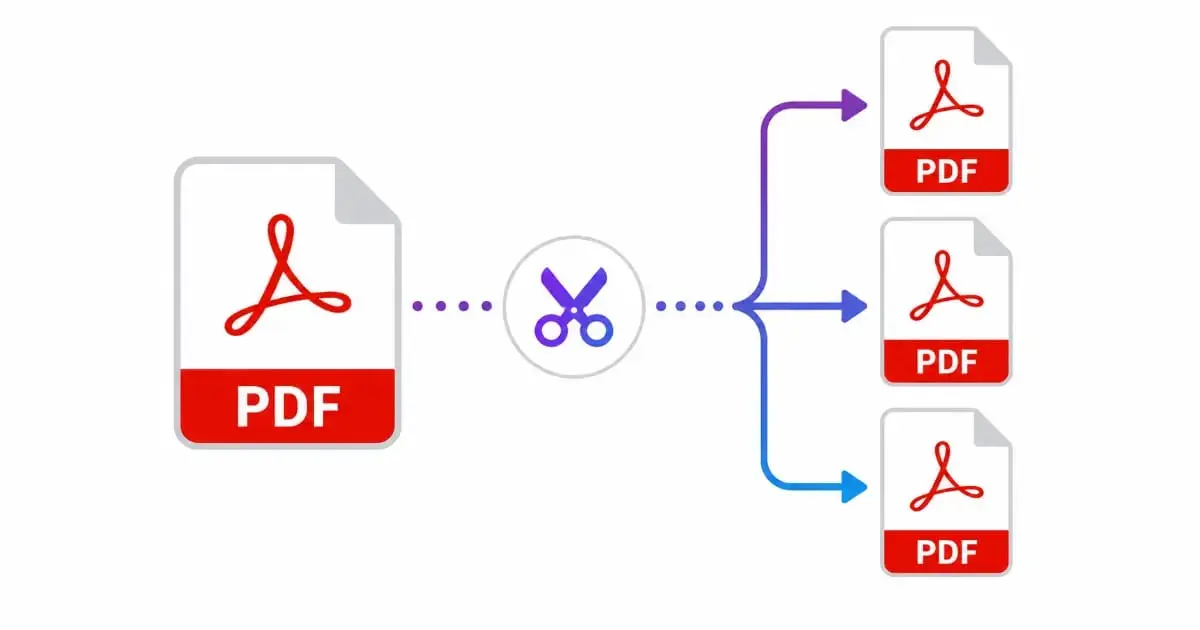
Split PDF Tool
Upload a PDF below and split it into separate files instantly.
Drag & drop your PDF file here
or click below to browse from your device
Each page becomes its own PDF file.
Choose exactly which pages go together.
Separate each range or page with a comma. Each range becomes its own downloadable PDF.
Split Files
Every resulting PDF file will appear here, ready to download.
No PDF uploaded yet. Add a file to get started.
Introduction
Split PDF tools solve one of the most common document headaches: you have one large PDF, but you only need a handful of pages from it, or you need to hand out different sections to different people. This page introduces a completely free, browser-based tool that lets you split PDF files instantly, breaking a single document into individual pages or custom page ranges, without installing any software or sending your files to a remote server.
In the sections below, you will learn exactly what this tool does, why splitting a PDF is useful, how to use the tool step by step, and where this kind of splitting helps most in daily work. We have also included several structured tables that summarize features, benefits, and frequently asked questions.
This guide is written in plain, beginner-friendly language. You do not need any technical background to follow along — by the end, you will understand exactly how to break any PDF into clean, separate files in just a few clicks.
What Is a Split PDF Tool
A split PDF tool takes one PDF document and divides it into two or more separate PDF files, without changing the content of any individual page. This is different from simply deleting pages, because every resulting file remains a complete, standalone PDF that can be opened, shared, or archived on its own.
This particular tool works entirely inside your web browser using a JavaScript library that understands the internal structure of a PDF file. When you upload a document, the browser reads each page’s content directly and copies it, unchanged, into a brand-new PDF container. Because the pages are copied rather than redrawn or flattened, text stays fully selectable, images stay at their original resolution, and the layout looks exactly like the source file.
Splitting can be done in two main ways: breaking every single page into its own file, or defining custom ranges so that specific groups of pages end up together. Both approaches are covered by this tool, and you can switch between them depending on what a particular document needs.
Why Use This Split PDF Tool
Many online PDF tools require you to upload your document to a remote server before anything happens to it. This tool takes a different approach: every page is copied and reassembled directly inside your browser, so the file you upload never actually leaves your device. This matters if you are working with contracts, financial statements, or any file you would rather not hand over to an unfamiliar server.
Speed is another advantage. Because there is no upload step to wait for, even larger documents split almost instantly. You also get precise control over the result, since the custom range option lets you decide exactly which pages belong in which output file, rather than being limited to a single fixed splitting pattern.
Cost and convenience matter too. Desktop software capable of splitting PDFs is often bundled inside larger, paid document suites. This tool skips all of that — it works the same way on a phone, tablet, or laptop, and does not ask for an account or payment before you can use it.
Key Features
This Split PDF tool was built around real, everyday document workflows.
- Split every page: Instantly turn every page of a PDF into its own standalone file.
- Custom page ranges: Define specific groups of pages, like 1-3 or 8-10, to control exactly how the document is divided.
- Original quality preserved: Pages are copied directly, so text and images look exactly like the source file.
- Instant preview: See every resulting file listed with its size before downloading.
- One-click downloads: Save each split file individually, or download them all together in a single ZIP file.
- Built-in error handling: The tool clearly flags invalid files, invalid ranges, or password-protected PDFs.
- No installation required: Works entirely inside your browser on Windows, Mac, Linux, Android, and iOS.
Each of these features exists because real users need them. Try any of them yourself using the Split PDF tool above.
Feature Comparison Table
| Feature | This Tool | Typical Desktop Software | Typical Server-Based Tool |
|---|---|---|---|
| Cost | Free | Often Paid | Free or Freemium |
| Installation Needed | No | Yes | No |
| Privacy (files stay on device) | Yes | Yes | No |
| Custom Page Ranges | Yes | Sometimes | Sometimes |
| Original Quality Preserved | Yes | Yes | Varies |
| Works on Mobile | Yes | No | Yes |
Step-by-Step Guide: How to Split PDF Files
Splitting a document with this tool only takes a few moments. Follow the steps in the table below to get your separate files.
| Step | Action | What Happens |
|---|---|---|
| 1 | Open the Split PDF tool | The upload panel appears with a drag-and-drop area. |
| 2 | Upload your PDF file | Drag the file into the box or click “Choose PDF File” to browse. |
| 3 | Choose a splitting mode | Select “Split Every Page” or “Custom Ranges” depending on your needs. |
| 4 | Enter page ranges (if custom) | Type ranges like 1-3, 5, 8-10 separated by commas. |
| 5 | Click “Split PDF” | The tool creates a separate PDF for each page or range you defined. |
| 6 | Download your files | Save each file individually or grab all of them together as a ZIP file. |
Benefits of Using an Online Split PDF Tool
Breaking a large PDF into smaller files has several real, practical benefits for everyday work and study.
| Benefit | Description |
|---|---|
| Easier Sharing | Send only the relevant pages instead of an entire lengthy document. |
| Smaller File Sizes | Individual sections are far lighter to email or upload than one large file. |
| Better Organization | Separate chapters, forms, or invoices into their own manageable files. |
| Faster Reviews | Colleagues can review just their relevant section instead of scrolling through everything. |
| Simpler Editing | Smaller files are easier to work with in other PDF tools afterward. |
Common Use Cases
People split PDF documents for many different reasons. The table below highlights some of the most common situations where this tool comes in handy.
| Use Case | Why Splitting Helps |
|---|---|
| Long reports | Break a lengthy report into separate chapters or sections. |
| Scanned multi-document batches | Separate a single scanned PDF back into its original individual documents. |
| Invoices and statements | Extract just one invoice from a combined monthly statement file. |
| Contracts with multiple parties | Send each party only the pages relevant to their signature or section. |
| Textbooks and course materials | Pull out just the chapter needed for a specific assignment. |
| Legal filings | Separate exhibits or attachments from a combined court filing. |
If you later need to combine some of those split files back together, or bring in pages from another document entirely, a PDF merging tool can join them back into a single file whenever needed.
Splitting Modes Explained
This tool offers two straightforward ways to split a PDF, and choosing the right one depends on what you are trying to accomplish.
| Mode | Best For | Example |
|---|---|---|
| Split Every Page | Turning each page into a standalone file, no planning required | A 10-page PDF becomes 10 separate one-page PDFs |
| Custom Ranges | Grouping specific pages together intentionally | “1-3, 4-6, 7-10” becomes three separate multi-page PDFs |
If your pages are currently in the wrong order before splitting, a page rearranging tool can fix the order first, so that each split file comes out exactly as intended.
Splitting vs Deleting Pages: A Quick Comparison
| Aspect | Splitting a PDF | Deleting Pages |
|---|---|---|
| Result | Multiple standalone PDF files | One shorter PDF file |
| Original Pages Kept | Yes, in separate files | No, removed pages are gone |
| Best For | Distributing or archiving sections separately | Trimming unwanted pages from a single file |
| Reversible | Yes, files can be merged back together | Only if you kept a backup of the original |
Common Mistakes to Avoid
A few small missteps can turn an otherwise quick split into a messy result. Keeping these points in mind will help you get clean output every time.
- Miscounting page numbers: Double-check the total page count before typing custom ranges, especially for long documents.
- Overlapping ranges: Ranges like “1-5, 4-8” will duplicate page 4 and 5 across two files, which is rarely intended.
- Forgetting the original document: Keep a copy of the full PDF until you have confirmed every split file looks correct.
- Uploading a locked file: Password-protected PDFs need to be unlocked first before they can be split.
- Losing track of file names: When splitting into many pages, keep an eye on the downloaded file names so nothing gets mixed up later.
Security and Privacy Considerations
Documents that need splitting often contain sensitive material — financial records, legal agreements, or personal paperwork. Many online PDF tools quietly upload your file to a remote server before returning a result, which means the document passes through infrastructure you cannot inspect, even briefly. This tool avoids that step entirely by performing every split locally, using the processing power already built into your browser.
Because the file never leaves your device, there is no upload to intercept and no temporary server copy to worry about. This also means the tool keeps working even on a slow or unreliable internet connection, since there is no dependency on transferring a large file to a distant server and waiting for it to come back.
Compatibility Across Devices and Software
Every file produced by this tool is a completely standard PDF, fully compatible with any modern PDF viewer, browser, or operating system.
| Platform | Support | Notes |
|---|---|---|
| Windows | Full support | Opens in Edge, Chrome, and any installed PDF reader. |
| macOS | Full support | Opens directly in Preview and Safari. |
| Android | Full support | Opens in Chrome and most file manager apps. |
| iOS | Full support | Opens directly in Safari and the Files app. |
| WordPress and CMS platforms | Full support | PDF is a standard accepted upload format. |
Related PixaPDF Tools
This Split PDF tool is part of a larger toolkit of free, browser-based document and image tools. Explore these related tools for your next project:
Frequently Asked Questions
| Question | Short Answer |
|---|---|
| How do I split PDF for free? | Upload your file, choose a mode, and click Split PDF — no cost, no signup. |
| Is my data safe? | Yes, everything is processed locally in your browser. |
| Does splitting reduce quality? | No, pages are copied exactly as they appear in the original. |
| Can I use custom page ranges? | Yes, enter ranges like 1-3, 5, 8-10 for full control. |
| Can I split a locked PDF? | Unlock it first using a dedicated unlock tool, then split normally. |
Conclusion
Learning how to split PDF files the right way makes sharing, organizing, and archiving documents far simpler. Whether you are a student separating chapters from a textbook, a professional extracting one invoice from a combined statement, or a business owner distributing only the relevant pages of a contract, this free, browser-based Split PDF tool gets the job done in seconds — without installing software, without sending your file to a stranger’s server, and without any loss of quality along the way. Try it above and see how quickly one large PDF becomes exactly the separate files you need.
As with any document tool, a little care goes a long way: double-check your page ranges before splitting, keep the original file until you have confirmed every result is correct, and use a merging tool afterward if you ever need to bring split sections back together.
Further Reading
To learn more about the technical foundations behind this tool, see the official PDF specification (ISO 32000-2), Adobe’s own guide to extracting and organizing PDF pages, the Wikipedia overview of the PDF format, and Google’s guidance on reducing file sizes for faster sharing and uploading.