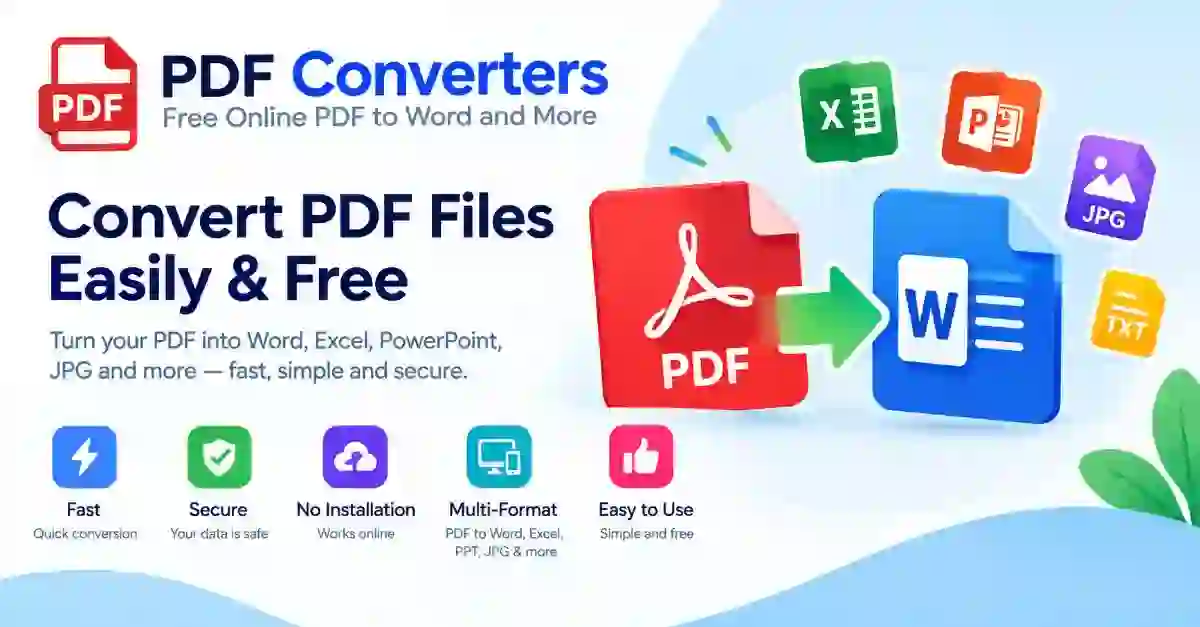
A PDF is built to be read, not changed. That is its strength when you share a finished file, and its weakness when you need to edit a table, reuse a paragraph or turn a page into something else.
The converters in this category move content between PDF and other formats, so you can reuse what is already written. Each one opens in your browser, so there is nothing to install.
Choose the output you need. The table shows what each converter does best.
| Task | Use It When |
|---|---|
| PDF to Word | You need to edit text, fix a typo or reuse a letter or report |
| Word to PDF | You need to share a Word file so it looks the same everywhere |
| PowerPoint to PDF | You need to share slides as a fixed document |
| Excel to PDF | You need to share a spreadsheet as a fixed document |
| HTML to PDF | You need a web page or HTML code saved as a PDF |
The PDF format was created so a document looks the same everywhere. That fixed layout is also why its content is harder to reuse. Converting gives you the content in a form that suits the next job. Word suits writing, Excel suits numbers, and a PDF suits sharing a finished file.
Results depend on how the PDF was made. A text PDF, saved from a program, holds real characters, and converters can read them. A scanned PDF is only a picture of paper, so there are no characters to extract.
If a converted file comes out empty or garbled, check whether your PDF is a scan. Try selecting a word in the PDF. If you cannot select it, the file is probably an image, and a converter cannot pull editable text from it.
Text and images usually carry over. Simple layouts convert cleanly, while complex ones, such as columns and text boxes, may need tidying. The tool accepts files up to 25 MB.
Tables with clear rows and columns convert best. Merged cells and notes may land in odd places, so proofread the numbers carefully after converting, because one misread digit changes a total.
Turning a file into a PDF locks its pages, so your reader sees what you intended, on any device. Check page size and fonts first, then convert and review the result before you send it. A Word file, a spreadsheet or a slide deck can all change shape on another device, and a PDF stops that from happening.
This one runs entirely in your browser. Paste HTML code or enter a web page address, and it saves the page as a PDF. It suits saving a receipt, an article or a form from the web. Very heavy pages with lots of scripts may not render exactly as they look in a browser.
Open the converter that matches the file you want. Upload your file, or drag it onto the page. Start the conversion and wait for it to finish. Download the new file, open it, and check the content before you share or edit it.
Always keep the original file. If the result is not right, you can try again or use another converter. Start from the original file, not a copy that was printed and scanned, and use a PDF that is not protected by a password.
Four of these converters send your file to our server to do the conversion: PDF to Word, Word to PDF, PowerPoint to PDF and Excel to PDF. Files sent to the server are processed there and deleted automatically within 24 hours, with no backups kept.
HTML to PDF is different. It runs in your browser, so the page or code you convert is never sent to a server.
Before you upload a document, think about what it contains. A flyer or a class handout carries little risk. A contract or a medical record needs more care, so decide whether an online upload suits it. Avoid public computers for sensitive files, and delete downloaded copies you no longer need.
Start from the original file, not a copy that was printed and scanned. Use a clear file, since blurry pages are hard to read. Convert only the pages you need if the document is long. Proofread numbers carefully after PDF to Excel, because one misread digit changes a total.
Students reuse notes, quote sources and prepare slides. Office teams edit contracts, reports and price lists. Accountants move statement tables into a spreadsheet. Anyone who lost the original file can recover its content from a PDF instead of retyping it.
Yes. There is no account and no payment. You pick the converter, upload the file and download the result.
Mostly. Simple documents convert cleanly. Complex layouts with columns, text boxes or merged table cells may need tidying after the conversion, so always open the result and check it.
For PDF to Word, Word to PDF, PowerPoint to PDF and Excel to PDF, your file is sent to our server, converted there, and deleted automatically within 24 hours, with no backups kept. HTML to PDF never leaves your browser.
Not directly. A scanned PDF is a picture of text, so there are no characters for the converter to read. The result will be empty or garbled. You need text recognition first, which these converters do not do.
Check whether the source PDF is a scan. If you cannot select the words in the PDF, the converter cannot read them either. Also check that the PDF is not password-protected, since a locked file cannot be converted.
A converter is a shortcut, not a rewrite. It moves your content into the format that fits the next job, and a quick check afterwards catches the few things that need tidying. Pick the converter that matches the file you have, keep the original safe, and the content is usually ready to use in a minute.