
Enter Webpage URL:
*Note: External CSS/Images must allow cross-origin requests for URL conversion.
HTML to PDF converter is a high-performance utility designed to bridge the gap between dynamic web content and static document formats. In the modern digital era, the ability to archive web pages, generate invoices from raw code, or capture layouts for offline reading is essential for productivity. Our tool provides a seamless interface where you can either paste raw code or provide a URL to get a perfectly formatted document in seconds.
The transition from a web-based DOM (Document Object Model) to a static PDF involves complex calculations of margins, fonts, and media placements. This HTML to PDF converter handles all those intricacies automatically, ensuring that what you see in the browser is exactly what you get on the page. Whether you are building a custom resume or saving a technical blog post, this utility is your go-to solution.
For those managing multiple file types, you might also find our Word to PDF tool or our Excel to PDF converter extremely helpful. By centralizing your conversion needs, you save time and maintain a consistent document quality across all your professional projects.
What is an HTML to PDF converter and Why Use it?
A specialized HTML to PDF converter is an application that interprets Hypertext Markup Language and Cascading Style Sheets (CSS) to produce a Portable Document Format file. Unlike a simple “screenshot,” a converter preserves the actual text data, allowing you to highlight, search, and interact with the content inside the PDF. This is vital for maintaining accessibility and professional standards in your documentation.
The primary reason to use an online HTML to PDF converter is portability. While a webpage might look different depending on the browser version (Chrome, Safari, Firefox), a PDF remains visually constant. This ensures that your invoices, reports, or legal notices are viewed exactly as they were designed, regardless of the recipient’s device or operating system.
If you are a developer looking to combine multiple web reports into a single file, you can use our Merge PDF utility after converting each section. This workflow is much more efficient than using heavy desktop software. Additionally, for those needing to go the other way, our PDF to Word tool offers the reverse flexibility for editing converted documents.
Mastering Paged Media with Advanced CSS
When using an HTML to PDF converter, the secret to a professional-looking document lies in your CSS. Modern browsers support specific rules for paged media that allow you to control exactly where a page should end. Using the page-break-before: always; property, you can ensure that new sections of your HTML document always start on a fresh page in the PDF. This is particularly useful for creating structured reports, academic papers, or lengthy business contracts.
Furthermore, developers can utilize the @page rule to set custom margins, headers, and footers directly within their HTML code. This level of control ensures that your output from the HTML to PDF converter doesn’t look like a messy website printout, but rather like a document created in a high-end word processor. By defining margin boxes, you can even insert dynamic page numbers or document titles that repeat across every page of your PDF.
The Technical Side of HTML Rendering
Modern HTML to PDF converter technology relies on browser rendering engines like Chromium or WebKit. When you input a URL or code, the tool renders the page in a headless browser environment. It then applies a “print” command that captures the visual state of the CSS box model. This includes background colors, gradients, and custom font glyphs, ensuring high-fidelity output.
One of the challenges in this process is handling responsive design. A website designed for a 1920px screen doesn’t always fit on an A4 page. Our engine intelligently scales the viewport to ensure that text remains readable and images don’t overflow the margins. This automated scaling is a core feature of a reliable HTML to PDF converter, saving users from manual layout adjustments.
For more technical details on how HTML should be structured for better printing, you can visit the Official W3C HTML Specifications. Understanding the semantics of your code helps the converter produce a more logical and accessible document structure for screen readers and search engines alike.
Long-Term Archiving and Legal Compliance
One often overlooked benefit of an HTML to PDF converter is its role in digital preservation. In industries like finance, law, and healthcare, maintaining a “frozen” record of web-based communications or portal views is often a regulatory requirement. Unlike a live URL, which can be modified or disappear entirely, a PDF generated by our HTML to PDF converter acts as a permanent record. This is vital for compliance audits where proof of exactly what was displayed on a specific date is required.
By using our tool, you can archive entire landing pages or policy documents in high resolution. Because our HTML to PDF converter preserves metadata and text indexing, these archives remain searchable for years to come. This makes it significantly easier for organizations to retrieve specific information from thousands of archived pages without having to rely on external web-crawling services or expensive database snapshots.
Key Features of Our Professional Converter
Our HTML to PDF converter stands out because of its dual-mode input. We understand that some users are developers who want to test raw code snippets, while others are business users who just want to save a live webpage. We support both seamlessly. With our code editor, you can preview changes in real-time before initiating the final conversion process.
Security is another major pillar of our service. Unlike other tools that store your data, our converter operates with temporary caches that are cleared immediately after you download your file. This privacy-first approach makes it safe for converting sensitive internal reports or financial data. If you need to further secure your document, consider our Protect PDF service for password encryption.
Furthermore, we offer advanced controls for file management. If your converted file is too large for email, you can use our PDF compressor to shrink the size without losing significant image quality. This integrated suite of tools ensures that your HTML to PDF converter experience is just the beginning of a complete document workflow.
Accessibility and Inclusivity in PDF Generation
Accessibility is a cornerstone of modern web design, and it shouldn’t stop at the browser. Our HTML to PDF converter is designed to respect semantic HTML tags like <header>, <footer>, and <article>. When these tags are used correctly in your code, the resulting PDF is much easier for screen readers to navigate. This ensures that your documents are inclusive and meet international accessibility standards, such as WCAG or Section 508.
Providing alt text for images in your source code is another way to maximize the effectiveness of the HTML to PDF converter. Our engine carries this metadata over to the PDF format, allowing visually impaired users to understand the context of the graphics in your document. Whether you are generating educational materials or government forms, using our converter helps you maintain a high level of inclusivity across all your digital assets.
Step-by-Step Guide to Convert HTML to PDF
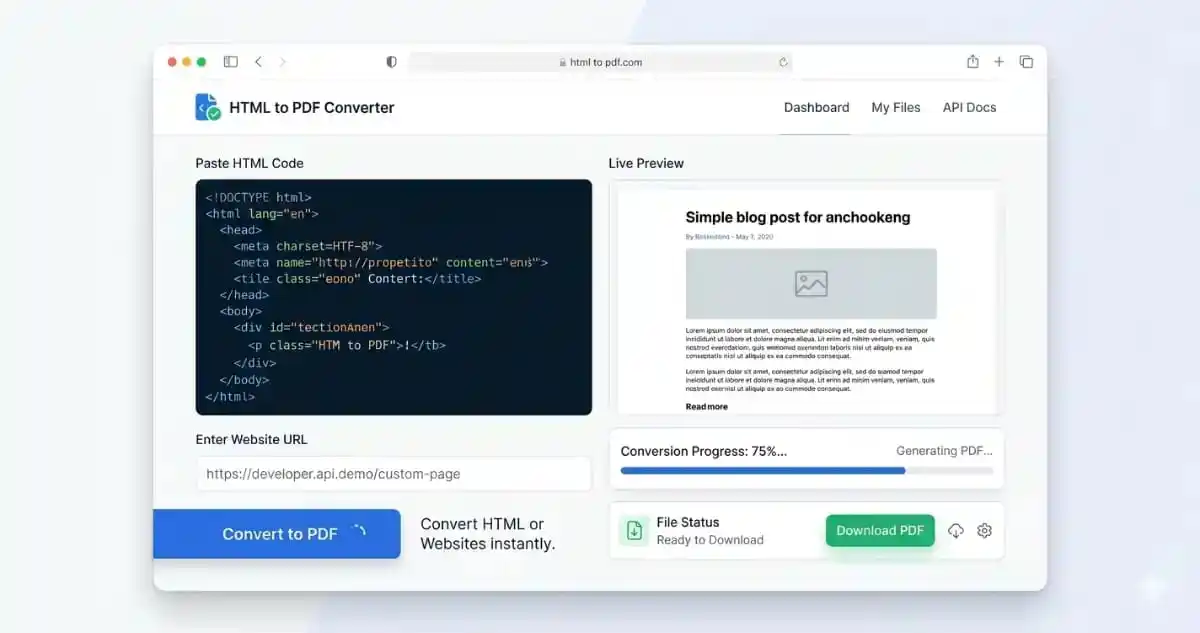
To use the HTML to PDF converter, first choose your input method. If you have raw code, select the “HTML Code” tab and paste your content into our syntax-highlighted editor. If you want to convert a live website, switch to the “URL / Webpage” tab and type in the full address starting with https://. Our tool will automatically attempt to fetch the latest version of that page.
Second, check the preview window. This shows a live rendering of your content. If you are satisfied with the look, click the “Convert to PDF” button. A progress bar will appear as our cloud engine processes your request. This typically takes less than 10 seconds for most standard pages. Once the processing is complete, the download button will turn green.
Finally, click “Download Your PDF” to save the file to your device. If you find that the page is missing numbers or headers, you can navigate to our Add Page Numbers page to organize your new document. This simple 1-click process is what makes our HTML to PDF converter a favorite among thousands of daily users.
Automating Dynamic Business Reports
For modern data-driven companies, manual report creation is a thing of the past. By leveraging an HTML to PDF converter, businesses can automate the generation of monthly invoices, performance dashboards, and analytical reports. Instead of building complex PDF templates from scratch, designers can use familiar web technologies like HTML and CSS to create beautiful layouts that update automatically with new data. Our HTML to PDF converter then serves as the final bridge to a professional document ready for distribution to stakeholders.
This “Web-First” reporting strategy is not only faster but also more consistent. Since the same HTML code can be used for both a web dashboard and a PDF report, there is no discrepancy in the data displayed. This synergy reduces the risk of errors and ensures that all parties are looking at the same information. If your automated report includes complex data tables, our HTML to PDF converter will preserve the structure perfectly, ensuring every row and column remains legible and aligned.
Business and Developer Benefits
For business professionals, an HTML to PDF converter is a vital tool for archiving digital evidence. Whether it is a pricing page on a competitor’s site or a specific news article, having a static PDF with a timestamp is crucial for legal and analytical purposes. It provides a “frozen” version of the web that won’t change even if the original site is updated or deleted.
Developers use the HTML to PDF converter to automate the creation of invoices, shipping labels, and dynamic reports. Instead of using expensive PDF generation libraries that are hard to configure, you can simply design your report in HTML/CSS and use our tool to generate the final file. This “Web First” approach to document generation is faster and much more flexible for modern applications.
Academic researchers also benefit significantly. When citing online sources, a URL isn’t always enough because websites go offline. By converting a webpage to a PDF, you create a permanent copy for your bibliography. If you need to extract specific pages from a long report, our Split PDF tool is ready to help you curate your research data effectively.
The Power of Vector Graphics in PDF Conversion
One significant advantage of using an HTML to PDF converter is the support for SVG (Scalable Vector Graphics). Unlike raster images like PNG or JPEG, which can become pixelated when zoomed in, SVGs remain sharp at any resolution. When our converter interprets an SVG within your HTML code, it renders it as a vector object inside the PDF. This means your logos, icons, and charts will look crisp whether they are viewed on a smartphone screen or printed on a large-format poster.
This high-fidelity rendering is essential for brand consistency. By ensuring that your visual assets never lose quality, the HTML to PDF converter helps maintain the professional image of your company. We recommend using vector formats for any non-photographic element in your HTML to ensure that the final document is of the highest possible quality. This tiny technical detail can make a massive difference in how your work is perceived by clients and partners.
Optimization and Print Media Queries
To get the best results from an HTML to PDF converter, it is recommended to use CSS “Print Media” queries. By adding @media print to your stylesheet, you can hide unnecessary elements like navigation bars, sidebars, and ads that don’t belong in a document. This makes your PDF look like a professionally designed book rather than a messy webpage capture.
Our tool respects these media queries perfectly. We suggest using a clean white background and black text for maximum readability. If your original page has a watermark you want to remove, you can always use our Remove Watermark utility after the conversion is finished to clean up the final visual result.
For more inspiration on how to design beautiful printable web pages, check out MDN Web Docs on Web Printing. Learning how to control page breaks and widow/orphan text will elevate the output of your HTML to PDF converter to a world-class standard, impressing clients and colleagues alike.
Diverse Use Cases for Every User
The versatility of an HTML to PDF converter extends to students who need to turn their online coding projects into submission-ready documents. Instead of taking multiple screenshots of their code results, they can convert the entire project into a single PDF. This keeps the presentation professional and allows the instructor to see the full layout in high resolution.
In the legal sector, lawyers often need to capture website content for litigation. A HTML to PDF converter allows them to create a document that can be easily filed in court systems. Because our tool preserves links, the court can still verify the sources by clicking directly within the document. If you find your document needs more clarity, use our PowerPoint to PDF tool for your supplementary presentation slides.
Marketing agencies use these tools to create “Snapshots” of their landing page designs for client approval. It is much easier for a client to open a PDF attachment on their phone than to navigate through a staging URL. This speed and convenience improve client satisfaction and accelerate the feedback loop. Every professional should have a reliable HTML to PDF converter bookmarked in their browser.
Frequently Asked Questions
Is this HTML to PDF converter really free?
Yes, our tool is 100% free to use. We do not require any sign-ups or subscriptions. You can convert as many pages as you like without hidden costs. Our mission is to provide high-quality document tools to the global community at no charge.
Does the converter support CSS and Images?
Absolutely! Our HTML to PDF converter uses a modern rendering engine that supports CSS3 and high-resolution images. As long as your assets are accessible online (not blocked by a firewall), they will appear perfectly in your PDF.
Can I convert a password-protected website?
No, for security and privacy reasons, our automated converter cannot bypass login walls or passwords. If you need to convert a protected page, we recommend copying the raw HTML code after you have logged in and using the “Code” tab in our tool.
What is the file size limit?
We allow conversion of pages up to several megabytes of code. If your PDF ends up too large because of high-res images, remember to use our PDF compressor to optimize it for sharing.
Will the links in my HTML still work in the PDF?
Yes, one of the main advantages of using a HTML to PDF converter over a screenshot tool is that hyperlinks are preserved. Your readers can click on links within the PDF and be directed to the correct web resources.
Conclusion
In summary, the HTML to PDF converter is an indispensable tool for anyone who works with digital content. It offers a perfect balance of speed, accuracy, and ease of use. By transforming the fluid web into a stable document, you gain control over your information and how it is shared with the world. We invite you to explore our full suite of PDF tools to streamline your entire document management process.
Whether you are a developer automating your workflow, a student preparing an assignment, or a business owner archiving important data, our tool is designed to serve you. Thank you for choosing our platform for your conversion needs. We are constantly updating our algorithms to stay the best HTML to PDF converter on the internet.
For more information on web standards and media types, you can explore the IANA Media Type Registry. Stay connected with the latest in web development by visiting Google’s Web Fundamentals. We look forward to helping you with your next document project!