
Blur Censor Image Online 100% Free and Secure Tool
Hide faces, license plates, text, and sensitive details in any photo. Everything runs in your browser your image never leaves your device.
Blur Censor Image Editor
No image loadedWhat Is a Blur Censor Image Tool?
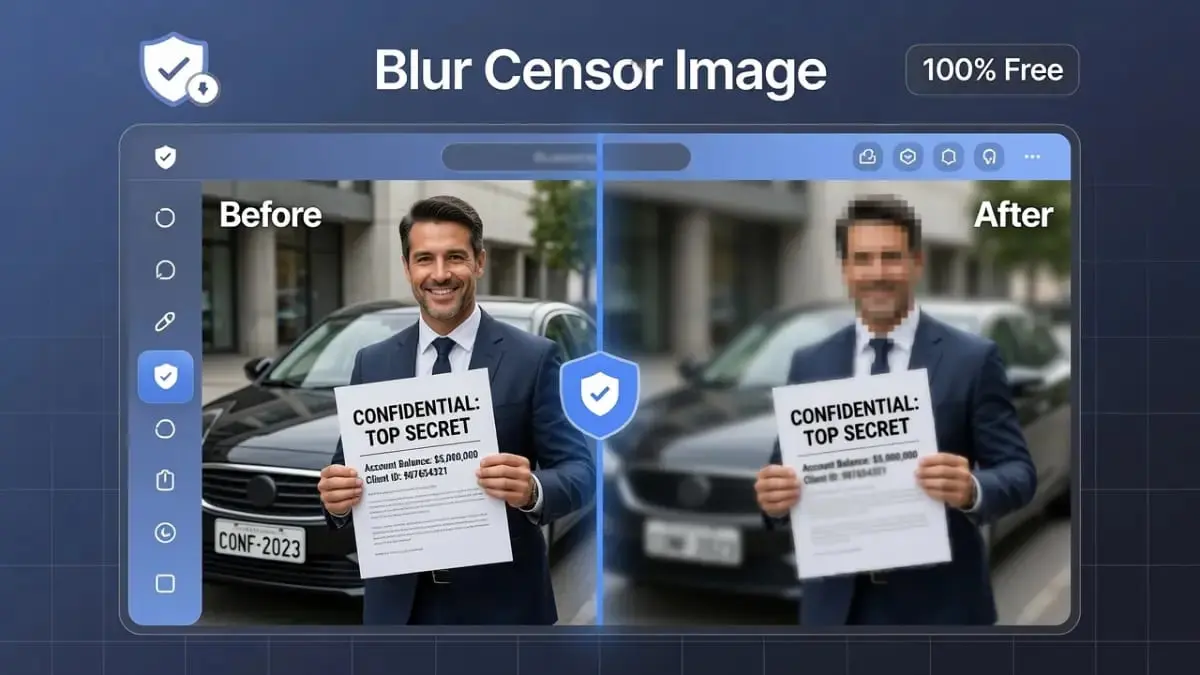
A Blur Censor Image tool is an online utility that lets anyone hide sensitive visual information inside a photo before sharing it publicly. Instead of editing in complex desktop software, you simply upload a picture and draw a selection over the area you want to obscure a face, a license plate, a document number.
Apply a blur or pixelation effect with one click. The result is a photo that is safe to post, print, or send, without revealing private details.
Privacy concerns around shared images have grown significantly as more photos circulate on social media, marketplaces, and messaging apps. A reliable tool like this one gives everyday users the same control that newsrooms and legal teams have long relied on, without needing professional editing skills.
Blur Censor Image Tool How to Use
- 1Upload Your Photo
Click the upload area or drag and drop a JPG, PNG, or WEBP image directly into the tool.
- 2Choose a Censor Mode
Select Blur, Pixelate, or Solid Box depending on how strongly you want the area hidden.
- 3Select the Area to Hide
Draw a box or use the brush tool to paint directly over a face, license plate, or any sensitive text.
- 4Adjust the Intensity
Use the strength slider to control how strong the blur or pixelation effect appears on the selected region.
- 5Repeat for Multiple Areas
Censor as many regions as needed multiple faces, several license plates, or various pieces of text in the same photo.
- 6Download the Result
Click “Download Censored Image” to save the final picture to your device, ready to share safely.
Blur Censor Image Tool Key Feature
Blur Censor Image Tool Before Sharing Photos?
Sharing photos online on social media, marketplaces, forums, or even in support tickets often means accidentally exposing more than intended. A quick Blur Censor Image workflow protects you and the people around you in several common scenarios:
Protecting Identity Documents
When sharing screenshots of ID cards, passports, or boarding passes for support requests, blur out the photo, signature, and document number while keeping the relevant text visible.
Hiding License Plates
Selling a car online or sharing a street photo? Use the pixelation mode to hide license plates so the vehicle cannot be tracked back to its owner.
Blurring Faces for Privacy
Group photos posted publicly often include people who did not consent to being shown. Blur their faces while keeping the rest of the image intact ideal for event photographers, journalists, and everyday social media users alike.
Redacting Financial Information
Screenshots of bank statements, invoices, or receipts frequently contain account numbers or balances. Apply a solid box censor over these figures before sending the image to anyone outside your trusted circle.
Removing Location Clues
House numbers, street signs, or visible mail can reveal a home address. A quick blur or pixelation keeps the photo’s context intact while removing identifying details.
Benefits of Using Our Free Blur Censor Image Tool
- Saves Time: Censoring an image with this tool takes seconds compared to opening dedicated photo editing software.
- No Skills Required: Anyone can draw a box or paint a brush stroke no design experience necessary.
- Multiple Censor Styles: Choose between blur, pixelation, or solid box depending on the level of obfuscation needed.
- Preserves Image Quality: Only the selected region is altered; everything else stays at full resolution.
- Safe for Sensitive Content: Because nothing uploads to a server, this is one of the safest ways to redact private images online.
- Cross-Platform: Works equally well on desktop, tablet, and mobile browsers.
Blur vs Pixelate vs Solid Box Which Censor Mode Should You Use?
Not every situation calls for the same type of censoring. This Blur Censor Image tool offers three distinct modes, each suited to a different level of privacy protection and visual context.
When to Choose Blur
Gaussian blur softens the selected area while keeping a faint impression of shape and color. It works well when you want to obscure a face or object without making the photo look heavily edited ideal for lifestyle photos, travel pictures, or casual social posts where a subtle effect feels more natural than a harsh black box.
When to Choose Pixelate
Pixelation breaks the area into visible blocks, instantly signaling to viewers that something has been intentionally hidden. This is the look most associated with television news censoring recognizable, deliberate, and effective for license plates, tattoos, or any detail you want to clearly mark as redacted rather than just softened.
When to Choose Solid Box
A solid black box offers the strongest guarantee that no trace of the original pixels remains visible. Use this mode for highly sensitive information such as account numbers, ID numbers, or full names printed on documents, where even a faint blur silhouette could be risky.
Many users combine all three modes within a single photo for example, pixelating a license plate while using a solid box over a printed document number in the same frame.
Common Mistakes to Avoid With Blur Censor Image Editing
Even with a simple Blur Censor Image tool, a few habits can undermine the privacy protection you are trying to achieve. Keep these points in mind every time you prepare an image for sharing.
- Using too light a blur: A weak blur intensity can sometimes be reversed using sharpening filters. Increase the strength slider until the underlying detail is genuinely unrecognizable, especially for faces and text.
- Leaving metadata untouched: Image files can carry embedded location and device data separate from the visible pixels. The Cybersecurity and Infrastructure Security Agency (CISA) advises reviewing this hidden file data before sharing photos publicly, since blurring alone does not remove embedded location tags.
- Forgetting secondary reflections: Mirrors, glass, sunglasses, or window reflections can sometimes reveal the very thing you just censored elsewhere in the frame. Scan the full image before finalizing.
- Cropping instead of censoring: Cropping out a region can sometimes be undone by viewers who have access to the original aspect ratio elsewhere. Censoring in place with a proper redaction tool is generally more reliable than cropping for privacy purposes.
- Skipping a final review: Always zoom in on the censored region after applying the effect to confirm no edges or gaps were missed before downloading.
Real-World Use Cases for the Blur Censor Image Tool
Beyond the common scenarios already covered, this Blur Censor Image tool serves a wide range of everyday and professional needs:
E-Commerce Product Photography
Sellers photographing products at home often capture personal items, mail, or family members in the background. A quick blur over these incidental details keeps listing photos focused and professional without needing to reshoot.
Property Listings and Rentals
Landlords and real estate agents frequently need to hide door codes, mailbox names, or neighboring house numbers visible in listing photography, protecting both current occupants and future tenants.
Educational and Training Materials
Instructors creating tutorials or case studies from real screenshots often need to hide student names, employee IDs, or company specific data while keeping the educational content intact.
Legal and Compliance Documentation
Organizations preparing evidence, reports, or compliance submissions frequently must redact personally identifiable information before documents can be shared externally. The National Institute of Standards and Technology (NIST) outlines redaction as a core data confidentiality practice, a process this Blur Censor Image tool simplifies for image based files.
How This Blur Censor Image Tool Compares to Traditional Photo Editing Software
Desktop applications like Photoshop or GIMP can certainly achieve similar redaction effects, but they come with a steeper learning curve, installation requirements, and often a price tag.
A purpose built browser tool trades some of that flexibility for speed and accessibility there is no menu hunting, no layer management, and no need to understand masking techniques. For the specific task of hiding a face, plate, or block of text, this Blur Censor Image tool reaches the same end result in a fraction of the time.
This approach mirrors a broader shift in how people handle quick everyday editing tasks. Just as users now reach for lightweight online utilities instead of full desktop suites for resizing or converting files, image redaction has become simple enough to handle entirely within the browser using a Blur Censor Image tool no downloads, updates, or paid licenses required.
Security and Privacy
Privacy is the entire reason this Blur Censor Image tool exists, so we built it to match that purpose. When you upload a photo into this tool, the file is read directly into your browser’s memory using JavaScript’s File API it is never transmitted to PixaPDF servers or any third party.
All blurring, pixelating, and editing happens locally on your own device using the HTML5 canvas engine.
According to the FTC privacy and security guidance, minimizing the amount of personal data transmitted over the internet is one of the most effective ways individuals and businesses can reduce privacy risk. By keeping all processing client side, this Blur Censor Image tool follows that exact principle by design.
When you click download, the final censored image is generated and saved straight from your browser to your device at no point does an unedited or edited version pass through an external server.
Who Should Use This Blur Censor Image Tool?
- Social Media Users blur faces of friends, family, or strangers before posting group photos publicly.
- Online Sellers censor license plates, addresses, or personal items visible in marketplace listing photos.
- Customer Support Teams redact sensitive account details in screenshots shared during support tickets.
- Journalists and Bloggers protect sources and bystanders by blurring identifying features in published images.
- Real Estate Agents hide house numbers, mail, or personal belongings visible in listing photography.
- Parents and Guardians blur children’s faces before sharing family photos on public platforms.
Need to prep your images further? Try our Image Compressor to reduce file size after censoring, or use the Background Remover if you also need to remove a distracting background. Pair this tool with our Image Color Picker to match censor box colors to your photo, or check the Color Palette Generator for design inspiration.
Understanding Different Types of Image Redaction
Image redaction is not a one-size-fits-all process. Different situations call for different levels of obscurity, and understanding these distinctions helps you choose the right approach every time. Partial redaction might hide a name while keeping the document context visible. Full redaction turns an entire section into an unreadable block. The Blur Censor Image tool supports both approaches, giving you flexibility based on the sensitivity of the information.
Temporal redaction is another concept worth knowing. Some images need to be censored only for a limited time. A preview screenshot shared during beta testing might show features that are not public yet. Once the product launches, the same image can be shared uncensored. The Blur Censor Image tool makes this workflow easy because you keep the original file and generate a temporary censored version for immediate use.
Layered redaction adds depth to the process. Instead of applying one effect across the entire sensitive area, you might use a light blur for background faces and a solid box for foreground text. This creates a visual hierarchy that guides the viewer’s eye while protecting what matters most. The brush tool in this Blur Censor Image editor excels at this kind of nuanced work because it lets you paint precisely where each effect belongs.
Legal Requirements for Image Censoring
Many industries operate under strict regulations that mandate image redaction. Healthcare providers must comply with HIPAA, which requires that any patient identifying information in photographs be removed before those images are used for training, research, or marketing. A single uncensored photo can result in fines that reach into the millions of dollars. This tool provides a fast first line of defense, though organizations should always pair it with formal compliance review processes.
Law enforcement agencies face similar constraints. Body camera footage often contains bystander faces, license plates, and home interiors that must be redacted before public release. The Freedom of Information Act and various state privacy laws create complex requirements about what must be hidden and when. While this tool handles the technical side of blurring, agencies should consult legal counsel to ensure their redaction workflows meet jurisdictional standards.
Educational institutions also navigate redaction rules. Student records, including photographs, fall under FERPA protections. A university sharing campus life photos on social media must ensure that students who have opted out of publicity are not visible. It lets communications teams quickly process batches of event photos, blurring opted-out individuals while keeping the vibrant atmosphere of the shot intact.
Advanced Techniques for Professional Results
Getting the most from a Blur Censor Image tool requires more than just drawing a box and clicking apply. Professional results come from understanding how the eye processes images and using that knowledge to make censorship feel natural rather than jarring. One technique is feathering, where the edges of the censored area gradually blend into the surrounding image. Our Gaussian blur mode achieves this automatically, creating soft transitions that do not draw attention to themselves.
Another technique is matching the censor style to the image content. A vintage photograph might look better with a pixelated censor that echoes the low-resolution aesthetic of the era. A modern corporate headshot might need a smooth blur that maintains the professional tone. It offers multiple modes precisely because context matters. The same redaction job can look right or wrong depending on which effect you choose.
Color matching is an advanced consideration. When using the solid box mode, the black rectangle can sometimes feel harsh against a light background. Some professionals prefer to sample a nearby color and use that as the box fill instead. While this tool currently uses black for maximum opacity, you can achieve a similar effect by using the blur mode at maximum intensity, which pulls colors from the surrounding area and creates a more integrated look.
Batch Processing and Workflow Integration
Individual image redaction is straightforward, but real-world projects often involve dozens or hundreds of photos. Newsrooms covering protests might need to blur hundreds of faces across a photo essay. Real estate firms shooting entire apartment complexes might need to hide unit numbers and resident belongings in every frame. While this browser-based tool handles one image at a time, understanding how it fits into a larger workflow is essential for efficiency.
The recommended approach is to sort images by redaction complexity before processing. Simple jobs, like a single license plate in an otherwise clean shot, go through the Blur Censor Image tool immediately. Complex jobs, like crowd scenes with many faces, might be better handled in desktop software that supports batch actions. It serves as the quick solution for the majority of tasks, while specialized software handles the edge cases.
Integration with cloud storage is another workflow consideration. Many teams keep raw photos in Google Drive or Dropbox, download them for redaction, then upload the censored versions to a different folder. Naming conventions matter here. Append “_censored” or “_redacted” to filenames so team members instantly know which version is safe to share. The tool downloads files with generic names, so a quick rename after download prevents confusion later.
The Psychology of Visual Censorship
Why does a blurred face feel less intrusive than a black box? The answer lies in how the human brain processes incomplete information. A blur suggests that something is hidden but still present, which feels more honest than a solid block that erases all trace. Viewers tend to trust blurred content more because the original context remains partially visible. The Blur Censor Image tool leverages this psychological effect by offering blur as the default mode.
Pixelation creates a different reaction. The blocky, digital look signals intentionality. Viewers understand immediately that someone made a deliberate choice to hide something. This can be powerful in journalism, where transparency about redaction builds credibility. A pixelated face says “we are protecting this person’s identity” more clearly than a subtle blur that some viewers might miss entirely.
Solid boxes carry the strongest psychological weight. They create a visual void that draws the eye precisely because it reveals nothing. This can backfire in casual contexts where the censorship itself becomes the focus. However, in legal and financial documents, the solid box is often the right choice because it leaves absolutely no room for interpretation. Applied correctly with a Blur Censor Image tool, the information is gone, period.
Preparing Images for Different Platforms
Each social platform handles images differently, and these differences affect how your redaction appears. Instagram applies compression that can soften a blur, potentially making a face more recognizable than intended. Twitter’s compression is more aggressive, which can exaggerate pixelation and make blocks look harsher. Understanding these platform quirks helps you choose the right intensity setting in your Blur Censor Image tool before you post.
Print media has its own rules. A blur that looks sufficient on a phone screen might be reversible when blown up to magazine size. Professional publishers often combine multiple redaction techniques, layering a blur over a pixelated base for extra security. The Blur Censor Image tool lets you experiment with these combinations by applying one effect, downloading, then re-uploading to add another layer.
Email attachments deserve special attention. Many email clients preview images at reduced resolution, which can make subtle blurs disappear entirely. If you are sending sensitive documents via email, use the solid box mode or maximum blur intensity. Test the preview in your own client before sending. The extra thirty seconds of verification with a reliable Blur Censor Image tool can prevent an embarrassing or costly privacy breach.
Related Tools You Might Find Useful
PixaPDF Tools offers a growing library of free image and design utilities. Here are some that pair well with this Blur Censor Image tool:
Start Using the Blur Censor Image Tool Today
Protecting privacy in shared photos should not require expensive software or complicated editing skills. Our Blur Censor Image tool gives you a fast, private, and reliable way to hide faces, license plates, documents, and any other sensitive detail before you post, print, or send a photo.
Every part of the process runs locally on your device, so you stay in full control of your data from upload to download.
Scroll up, upload your Blur Censor Image photo, and have a properly censored image ready in under a minute. It is that simple.
Essential Privacy Resources for Image Sharing
To further understand digital privacy and protect your visual data, we recommend exploring these authoritative resources:
- Electronic Frontier Foundation (EFF) A leading nonprofit defending digital privacy, free speech, and innovation.
- Mozilla Security Blog Insights and updates on the latest web security standards and privacy protections.
- Privacy International A global organization dedicated to protecting the right to privacy across the world.
Frequently Asked Questions About Blur Censor Image
How do I blur censor an image online for free?
Upload your photo, select the area you want hidden such as a face or license plate, choose blur or pixelate, then click Apply. Download the censored image instantly with no software needed.
Is this blur censor image tool really free?
Yes, completely free with no hidden charges, no watermark, and no signup. Use it as many times as you need.
Can I blur faces in a photo for privacy?
Yes. Simply draw a box or brush over any face in your image and apply the blur effect. This is one of the most common uses of this tool.
Can I censor a license plate or document number?
Yes. Select the license plate, ID number, or any sensitive text region and apply pixelation or solid blur to hide it completely before sharing the photo.
Is my uploaded image stored on your servers?
No. All blurring happens directly in your browser. Your photo is never uploaded to or stored on any server, keeping your data completely private.
What image formats are supported?
You can upload JPG, PNG, and WEBP images, and export the final censored image as a high-quality PNG or JPG file.