
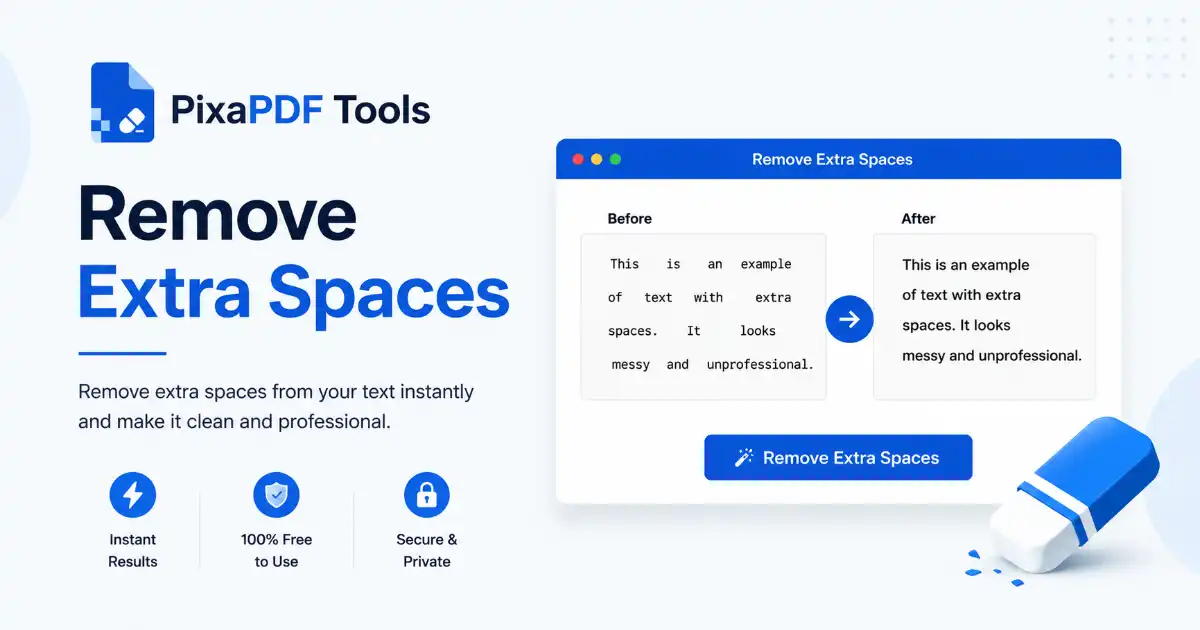
Remove Extra Spaces is the ultimate digital solution for anyone struggling with messy text layouts and formatting inconsistencies. When we copy content from different sources like websites, PDF documents, or chat applications, the text often arrives with broken formatting and unnecessary whitespace. Our browser-based utility solves this problem instantly by identifying every redundant character and stripping it away, leaving you with a polished and professional string of words. Whether you are a student, a developer, or a content writer, maintaining clean text is vital for readability and technical accuracy.
The beauty of this tool lies in its simplicity and security. Because the entire operation happens locally on your computer using JavaScript, none of your sensitive text is ever uploaded to a server. This makes it a perfect choice for handling confidential reports or private communication. You can use it as many times as you like without any registration or hidden fees. We believe in providing high-quality tools that improve productivity without adding complexity to your digital life.
In addition to cleaning whitespace, you can pair this tool with our other text utilities. For instance, after removing clutter, you might want to use our Word Counter to verify the final length of your article. Managing your content structure effectively is the first step toward better communication. From simple emails to complex coding scripts, eliminating unnecessary spaces ensures your message is conveyed clearly and without distraction.
What is the Remove Extra Spaces Tool?
A Remove Extra Spaces tool is a specialized text processing utility that automates the cleanup of digital content. In the technical world, text often contains “whitespace” characters which include tabs, non-breaking spaces, and standard spaces. When these are used excessively, it can break the visual flow of a paragraph or cause errors in data processing systems. This tool scans the entire input and applies logic to convert double or triple spaces into single spaces while preserving the necessary structure of your sentences.
Modern formatting requirements vary across different platforms. Social media, professional blogs, and coding environments all have different rules for how text should be displayed. By using this tool, you ensure your content follows a “single space” standard, which is the industry norm for professional publishing. It handles the boring task of manual backspacing so you can focus on the creative aspects of your writing. If you’re working on dummy layouts, check out our Lorem Ipsum Generator to create clean placeholders for your design projects.
Why Use Our Remove Extra Spaces Tool?
The primary reason to use our Remove Extra Spaces tool is efficiency. Manually finding and deleting every double space in a 2000-word document is a recipe for eye strain and human error. Our algorithm handles the entire process in milliseconds, guaranteeing that not a single extra character is missed. This level of precision is essential for professional writers who want their work to look immaculate before it hits the editor’s desk.
Another major reason is data integrity. In coding or data science, leading and trailing spaces can cause “invisible” bugs that are incredibly hard to find. For example, a trailing space at the end of a URL or a username could cause a database search to fail. By running your strings through this cleanup utility, you sanitize your data and prevent technical glitches before they happen. If your work involves handling long links, our URL Shortener can further help in keeping your data organized and tidy.
Key Features of the Remove Extra Spaces Utility
Our Remove Extra Spaces tool is packed with features designed for power users and beginners alike. One of the most popular functions is the “Remove Empty Lines” checkbox. This is particularly useful when you have text separated by massive gaps and want to condense it into a compact format. It removes all carriage returns and line breaks that don’t contain any text, significantly reducing the vertical height of your content.
The tool also includes a real-time word and character counter. This allows you to see the exact impact of the cleanup on your file size and length. We have also implemented a one-click “Copy Result” button, which saves you the hassle of manual highlighting. This is part of our commitment to building tools that are as fast as possible. If you need to change the capitalization of your cleaned text, our Text Case Converter is just one click away from providing even more formatting options.
Step-by-Step Guide: How to Remove Extra Spaces
Using the Remove Extra Spaces tool is straightforward. First, simply paste your text into the large input box at the top of the page. You will immediately see the character and word counts update in the statistics bar. You can copy text from Word, Excel, or any web browser window. Our tool is optimized to handle large amounts of data without lagging or crashing your browser tab.
Second, choose whether you want to remove empty lines by toggling the checkbox. Once you’re ready, click the “Clean Text Now” button. The tool will process your text using high-performance regex logic. Finally, click the “Copy Result” button to save the cleaned text to your clipboard. If you are preparing content for a formal PDF document, you might consider our Word to PDF tool to finalize your clean text into a stable, shareable format.
Benefits of Cleaning Your Text Formatting
The benefits of a Remove Extra Spaces tool extend beyond just looks. Clean text is more accessible for screen readers and assistive technologies used by visually impaired users. Redundant spaces and strange line breaks can cause these tools to pause or mispronounce words, creating a poor experience for the user. By sanitizing your content, you are indirectly improving the accessibility and inclusivity of your digital content.
Furthermore, clean text is better for SEO. Search engine bots crawl your site and analyze the HTML and text content. While a few extra spaces won’t kill your ranking, clean code and clean text are signs of a well-maintained and professional website. If you are extracting text from web pages to repurpose them, using our HTML to PDF tool can help you archive the layout, while this cleanup tool prepares the text for your new blog post.
Remove Extra Spaces for Students and Academics
For students, the Remove Extra Spaces utility is a lifesaver during essay season. When compiling research from various academic journals and online PDFs, the formatting is often a disaster. Text blocks might come with hard line breaks or weird indentations that don’t match your university’s style guide. Our tool strips all that away in an instant, allowing you to format your citations and bibliography perfectly.
It also helps with meeting strict word count requirements. Sometimes, students “cheat” by adding extra spaces to make a paper look longer—but professors can easily spot this. By using our tool, you ensure your count is honest and accurate. If you need to convert an old PDF assignment back into an editable format, our PDF to Word converter can help you get the text out, and then you can clean it up right here.
Remove Extra Spaces for Professional Writers
Professional writers and copy editors use the Remove Extra Spaces tool to ensure consistency across their manuscripts. Many writers have the old habit of putting two spaces after a period, a practice that is now considered outdated in the world of digital publishing. Our tool automatically fixes these instances, bringing your manuscript up to modern standards without you having to search for every period manually.
Clean text also makes the transition from a draft to a voice-over much easier. If you use our tool, you will notice that the AI voice flows much better when there are no random gaps or broken lines in the input. This is why many scriptwriters and podcasters use our cleanup utility as their final step before starting the recording or synthesis process.
Remove Extra Spaces for Bloggers and Marketers
Bloggers often need to Remove Extra Spaces when moving text between different content management systems like WordPress or Ghost. These platforms sometimes add their own HTML tags or extra spaces during the paste process. By cleaning the text first, you ensure that your blog post looks consistent on all devices, from mobile phones to large desktop monitors. This improves the dwell time and reduces the bounce rate of your readers.
Marketers also benefit when cleaning up email lists or social media captions. Extra spaces can make an Instagram caption look disjointed or unprofessional. For those who want a more personal touch, you can clean your text here and then use our Text to Handwriting tool to create a digital note that looks like it was written by hand. This level of detail can significantly boost engagement for your marketing campaigns.
Remove Extra Spaces for Developers
In the world of software development, programmers often need to Remove Extra Spaces from their code or documentation. While code minifiers exist, a quick cleanup tool is great for sanitizing comments, README files, or JSON data. It prevents the “empty string” errors that can occur when a user inputs text into a form that isn’t properly trimmed on the frontend or backend.
Developers also use this for log analysis. When copying logs from a terminal, the alignment is often preserved using tabs and spaces that make the text hard to read in a standard notepad. Running those logs through this tool can help collapse the data into a more readable format for debugging. You can learn more about how browsers handle string manipulation in the MDN JavaScript String Documentation, which covers the logic behind the `trim` and `replace` functions we use.
Technical Logic and Regex Foundations
The technology behind text cleanup is based on Regular Expressions, commonly known as Regex. To find multiple spaces, we use a pattern that looks for a space character followed by one or more occurrences of itself. This is computationally very light, which is why our tool can process thousands of lines of text in a fraction of a second. This method is far superior to looping through each character of a string, which would be much slower for larger documents.
Understanding the difference between a carriage return and a newline is also part of our tool’s logic. Different operating systems (Windows vs macOS) use different characters to represent the end of a line. Our tool is designed to be cross-compatible, normalizing these characters so your text looks the same regardless of where it was created or where it is going. For a deeper dive into professional writing standards, check out the Chicago Manual of Style, which provides the foundation for modern typography and spacing rules.
The Importance of Clean Text in Digital Marketing
Digital marketing is all about attention to detail. Every piece of content you put out represents your brand’s authority. If your landing pages have inconsistent spacing, it signals a lack of quality control to your potential customers. Using a text cleaner as part of your standard publishing workflow is a small habit that yields large results in brand perception and user trust. It is the digital equivalent of ironing your shirt before a big meeting.
Clean text also plays a role in internal data management. When you keep your internal docs and customer-facing content tidy, you reduce the chances of errors during copy-pasting or content translation. This is why we have built a suite of tools to handle everything from text to PDFs. Whether you are using a PDF tool to manage your files or a text tool to sanitize your content, our platform is designed to be your all-in-one productivity hub.
Frequently Asked Questions
Does the Remove Extra Spaces tool work with tabs?
Yes! When you Remove Extra Spaces using our tool, it treats tabs as whitespace and collapses them into a single space along with other redundant characters. This is perfect for cleaning up code or data tables that have been copied into a plain text format.
Is my data safe when using this tool?
Absolutely. To Remove Extra Spaces, we use client-side JavaScript. This means your text never leaves your browser and is never sent to our servers. Your privacy is our top priority, making this tool safe for all types of sensitive information.
What is the difference between “Clean Text” and “Remove Empty Lines”?
Cleaning text will Remove Extra Spaces between words on the same line. Removing empty lines will delete the vertical gaps between paragraphs or blocks of text. You can use both together to create the most compact version of your content possible.
Can I use this on my mobile phone?
Yes, our tool is fully responsive. You can easily clean up your text on an iPhone, Android, or tablet. The interface adjusts to your screen size, providing a seamless experience whether you are at your desk or on the move.
Best Practices for Text Formatting
To get the best results from your writing, always aim for a “Clean First” approach. Before you start applying bold styles, italics, or links, ensure the raw text is free of formatting junk. This makes the styling process much smoother and prevents CSS conflicts in your web design. It also makes your content much easier to translate if you are using automated translation services, which often get confused by random spaces.
Finally, remember that less is more. In the age of mobile browsing, long walls of text with irregular spacing are intimidating to readers. Use short paragraphs, clear headings, and clean spacing to keep your audience engaged. Check out PlainLanguage.gov for excellent advice on how to write clear and concise content that reaches your audience effectively.
Conclusion
In conclusion, the ability to Remove Extra Spaces is a fundamental part of the modern writing and coding workflow. Our tool provides a fast, free, and secure way to ensure your content is always in top shape. By eliminating the clutter of redundant whitespace, you improve the readability, accessibility, and professional quality of your work. We invite you to explore our wider range of PDF and text tools to further enhance your digital productivity.
Thank you for choosing PixaPDF Tools for your document and text management needs. We are constantly updating our algorithms to provide the best user experience on the web. Save this page to your bookmarks and never worry about messy text formatting again. Happy writing!