
Rotate PDF Free Online Fast and Secure Tool
Correct document orientation permanently with our enterprise-grade processing engine. 100% free, browser-based, and highly secure rotation for any PDF file.
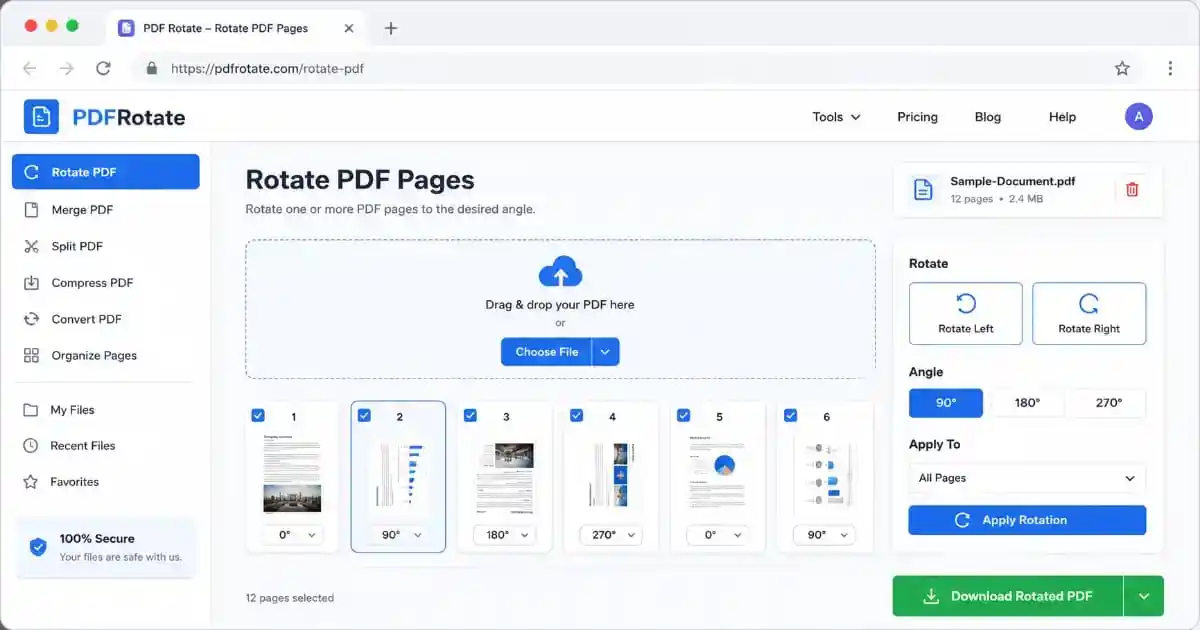
Rotate PDF free online tool is the definitive answer for anyone struggling with documents that have been saved in the wrong orientation. In a world where digital documentation is the standard, receiving a file that is upside down or sideways can bring your workflow to a grinding halt. Whether it is a business contract that needs signing or a textbook chapter that needs studying, visual clarity is essential. Our platform provides a high-speed, intuitive interface to correct these errors without the need for complex software or subscriptions.
At PixaPDF Tools, we emphasize the importance of data privacy and user convenience. Unlike desktop-based solutions that require installation and system resources, our tool runs entirely in your web browser. This means you can fix your documents on the go, whether you are using a mobile phone at a coffee shop or a powerful workstation in an office. Our encryption protocols ensure that your files are handled with the highest level of care, giving you peace of mind while you optimize your digital assets.
What is Rotate PDF Tool?
A Rotate PDF tool is more than just a visual flipper; it is a metadata editor that modifies the core instructions of a document. When a PDF is created, each page contains a “Rotate” entry in its dictionary. This entry tells PDF viewers like Adobe Acrobat or Google Chrome how many degrees to turn the content for the viewer. Our tool interacts directly with this entry, ensuring that the changes you make are saved into the file’s structure. This is the difference between simply viewing a file differently and actually fixing it for the future.
Our sophisticated online interface allows you to see every page as a high-resolution thumbnail. This visual feedback is crucial for multi-page documents where only a few pages might be misaligned. Instead of rotating the whole file and breaking the pages that were already correct, you can select only the problematic ones. If your document requires further structural changes, you may want to rearrange PDF pages to ensure the logical flow matches the corrected orientation.
Why use Rotate PDF Free Online?
Choosing a web-based Rotate PDF service offers unparalleled flexibility and cost-effectiveness. Most professional PDF editors cost hundreds of dollars per year, which is unnecessary for simple orientation fixes. Our tool provides those same premium features for free. Furthermore, web-based tools eliminate the risk of downloading malware-infected installers, as everything happens within the safe environment of your browser’s sandbox.
- Cross-Platform Support: Works perfectly on Windows, macOS, Android, and iOS devices.
- No Account Required: You don’t need to sign up or share your email to get your work done.
- Instant Previews: Verify every rotation change visually before you download the final file.
- Zero Installation: Saves disk space and prevents system bloat on your computer or mobile.
Document management often involves multiple steps. For instance, if you are organizing an archive of scanned receipts, you might first need to merge PDF files together and then apply a universal rotation to fix the scanning angle. Our suite of tools is designed to work together to handle these complex scenarios with ease.
Key Features of our Tool
The Rotate PDF utility we offer is packed with features designed for both power users and beginners. We understand that every document is unique, which is why we offer rotation in various increments. While 90, 180, and 270 degrees are the industry standards, we also include custom degree options for artistic or specific design layouts. Here is what sets us apart:
- Individual Page Control: Select and rotate specific pages without affecting the rest of the document.
- Batch Processing: Use the ‘Rotate All’ feature to fix massive files with hundreds of pages instantly.
- High Fidelity Preservation: We ensure that your text remains selectable and your images remain crisp.
- Cloud Processing: Our high-performance servers handle the heavy lifting, saving your device’s battery life.
- Automatic Cleanup: All uploaded data is wiped within an hour to ensure total user privacy.
After you have corrected the orientation, you might find that the file size has increased or is too large for email attachments. In such cases, you can use our PDF compressor to shrink the file while keeping the new orientation intact. This makes sharing your corrected documents faster and more efficient.
How to Rotate PDF Pages Online
Correcting your document is a simple five-step process with our Rotate PDF engine. We have streamlined the UX to ensure you spend less time clicking and more time being productive:
- Upload: Use the drag-and-drop box or click to select your PDF from your local storage.
- Render: Our engine will quickly generate thumbnails for every page in your document.
- Adjust: Click individual pages to rotate them by the selected degrees, or apply the change to all pages.
- Process: Click the “Save” or “Apply” button to let our servers write the new metadata to the file.
- Download: Once the “Download” button appears, click it to save your perfectly oriented PDF.
If you find that your document contains sensitive information that should not be visible after rotation, you might need to split PDF into different sections to keep only the pages that are necessary for public viewing.
The Evolution of PDF Processing
The journey of the Rotate PDF functionality is deeply tied to the history of the PDF format itself. Originally developed by Adobe in the early 1990s, the PDF was intended to be a “digital paper” that looked the same on every screen. However, as scanning technology became more common, the issue of orientation became a major hurdle. Early scanners often captured documents in landscape mode by default, leaving users with files they couldn’t easily read.
In the early days, you needed expensive desktop licenses to even turn a page. Today, thanks to advancements in JavaScript and cloud computing, tools like ours have democratized document management. We use modern libraries that allow for real-time rendering of PDF content directly in the browser. This technological leap has made the Rotate PDF process accessible to everyone, regardless of their budget or technical expertise.
Benefits of Permanent Rotation
Many users don’t realize that simply “rotating a view” in a browser or a preview app is temporary. To ensure a professional look, you need a permanent Rotate PDF solution. A permanent fix means that whether you send the file via WhatsApp, email, or upload it to a cloud drive like Dropbox, it will always open in the correct orientation. This consistency is vital for maintaining a professional brand image.
Moreover, permanent rotation is critical for printing. If a page is saved sideways, most printers will print it sideways, wasting paper and ink. By using our tool to fix the file internally, you guarantee that every print job comes out exactly as intended. If you are working with legal or confidential documents, it is highly recommended to protect PDF with a secure password after you have finalized the orientation and layout.
Optimization for Enterprise Workflows
In a corporate environment, a reliable Rotate PDF tool can save hundreds of man-hours per year. Large organizations often deal with bulk scanning of physical archives. If a batch of 500 documents is scanned incorrectly, re-scanning them would take days. Our tool can handle these large-scale orientation fixes in a matter of minutes. This level of efficiency is what modern businesses need to stay competitive in a fast-paced digital economy.
Furthermore, our tool supports integration with broader document strategies. For instance, after rotating pages to the correct orientation, an office manager might want to add page numbers to create a cohesive report. This multi-step optimization ensures that the final output is ready for board meetings or client presentations without any further adjustments. If you are handling proprietary designs, don’t forget to add watermark to protect your company’s visual assets.
Professional Use Cases & Examples
The versatility of the Rotate PDF tool makes it essential across various industries. In the legal sector, lawyers often receive discovery documents from multiple sources, often in varying orientations. Fixing these orientation issues is the first step in preparing for a case. In architecture and engineering, blueprints are often wide-format (landscape). Using our tool, engineers can rotate these drawings to match the orientation of the project specification documents for easier side-by-side comparison.
Healthcare professionals also rely on this utility when managing patient charts and insurance claims. Scanned medical records are notoriously messy; having a tool that can quickly Rotate PDF pages ensures that doctors spend less time fighting with the computer and more time focusing on patient care. If a file is received in a locked state, users can utilize our unlock PDF tool to remove editing restrictions before applying the necessary rotation fixes.
Technical PDF Standards Explained
Understanding the technical side of a Rotate PDF operation requires looking at the ISO 32000-1 specifications. The “Rotate” entry in a PDF page dictionary is specified as an integer that must be a multiple of 90. According to the official Adobe PDF Reference Guide, any value other than 0, 90, 180, or 270 might be ignored by some viewers. Our tool adheres strictly to these international standards to ensure 100% compatibility with every device.
For those interested in the future of document standards, the PDF Association provides resources on PDF/A, which is the standard for long-term archiving. Rotating your files correctly is a key part of maintaining an archive-ready document. Additionally, the ISO Document Management Standards offer a framework for how digital assets should be organized and preserved for future generations.
FAQs: Frequently Asked Questions
Yes! Our Rotate PDF tool allows you to click on any specific page thumbnail to rotate only that page. You are not forced to rotate the entire document.
No. Our engine only changes the orientation metadata. It does not re-encode the content, so your text remains selectable and your images stay high-quality.
Absolutely. All file transfers are encrypted using 256-bit SSL. Files are processed automatically and deleted from our servers after one hour. We never store or view your data.
The browser button only changes your current view. If you want the file to be fixed permanently so that everyone sees it correctly, you must use our Rotate PDF tool.
If your file has a watermark, the Rotate PDF tool will rotate the entire page, including the watermark. If you need to remove it, you can use our remove watermark tool separately.
No. You can use our tool as many times as you like. We believe in providing a 100% free service for everyone without any daily or monthly limits.
Yes. Since our tool is web-based, it works perfectly on Safari, Chrome, and any other mobile browser on iOS and Android devices.
Common Mistakes to Avoid When Rotating PDF Files
Even a simple task like fixing page orientation can go wrong if you rush through it. One of the most frequent mistakes people make with any Rotate PDF tool is applying a rotation to the entire document when only a handful of pages are actually misaligned. This often happens with scanned reports where a few pages were fed into the scanner sideways while the rest were correct. Always check each page individually before committing to a batch rotation, since undoing an accidental full-document rotation means starting the process over from your original file.
Another common error is confusing a temporary view change with a permanent fix. Many PDF readers let you rotate the on-screen display with a toolbar icon, but that adjustment only affects how the file looks on your own device at that moment. The moment you close the file or send it to someone else, it reverts to its original orientation. A genuine Rotate PDF tool, like the one on this page, writes the new orientation directly into the file itself so the change travels with the document wherever it goes.
People also sometimes forget to double-check the final result before sharing a rotated file with clients, professors, or colleagues. Because our tool generates an instant preview, there is no reason to skip this step. Taking ten extra seconds to confirm the page looks correct can save you the embarrassment of sending out a document that is still upside down, or worse, one that was rotated in the wrong direction entirely.
- Skipping the preview: Always glance at the rendered preview before clicking the save button.
- Rotating twice by mistake: If a page still looks wrong after one rotation, check whether it actually needed 180 degrees instead of 90.
- Losing track of the original file: Keep a backup of the source PDF in case you need to start over with a different angle.
- Ignoring mixed orientations: Multi-source scanned documents often mix portrait and landscape pages, so treat each page on its own merits.
Rotate PDF Across Different Industries
Beyond the general use cases already covered, the demand for a reliable Rotate PDF tool shows up in surprisingly specific ways across different fields. In publishing and editorial work, layout artists frequently receive manuscript scans or proof pages in mixed orientations from different contributors. Straightening these pages before compiling a final draft keeps the review process moving smoothly instead of forcing editors to tilt their heads at a screen.
In real estate, property listings often include floor plans and inspection reports that were originally designed for large-format printing. When these documents are converted to PDF, the wide landscape pages can end up oriented incorrectly inside an otherwise portrait-based package. Agents who rely on a quick Rotate PDF fix can present a clean, professional file to prospective buyers without asking them to constantly rotate their own screens.
Government and public sector offices handle enormous volumes of paperwork, much of it digitized from decades-old physical archives. Old microfiche scans and historical records are notorious for inconsistent orientation, and staff tasked with digitizing these archives benefit enormously from a fast, no-installation tool that can be used directly from a shared office computer without IT approval for new software.
Rotating PDFs on Mobile vs Desktop
More people than ever manage documents primarily from a phone, and a Rotate PDF tool needs to hold up just as well on a small touchscreen as it does on a full desktop monitor. Because this tool runs entirely inside the browser rather than as a native app, there is nothing to install from an app store and no storage space taken up on your device. The same rendering engine that powers the desktop preview scales down cleanly to fit a phone screen.
That said, there are a few practical differences worth knowing. On mobile, uploading a file usually means picking it from cloud storage such as Google Drive or iCloud, or from a document scanned moments earlier with the phone’s camera. Desktop users, on the other hand, often work with files already saved locally or pulled from an email attachment. Regardless of the source, the underlying Rotate PDF process is identical: the file is decoded locally, the rotation is applied to the page metadata, and a new file is generated for download, all without a round trip to a remote server.
One tip for mobile users: after downloading the rotated file, check your device’s default download location, since some mobile browsers save files to a “Downloads” folder that is separate from your photo library or cloud-synced folders. This small step prevents the common confusion of not being able to find a file immediately after it finishes saving.
Rotate PDF and Document Accessibility
Correct page orientation is not just a cosmetic issue; it directly affects how accessible a document is to everyone who needs to read it. Screen readers and other assistive technologies rely on a predictable, consistent layout to read content aloud in the correct order. A sideways or upside-down page can confuse text-to-speech tools, causing them to read content out of sequence or skip sections entirely. Using a Rotate PDF tool to correct orientation before distributing a document is a simple, often overlooked step toward better accessibility.
Students and professionals with visual impairments frequently rely on screen magnification software as well. When a page is rotated incorrectly, magnified text can run off the edge of the screen in confusing ways, making an already difficult reading experience even harder. Taking the time to fix orientation issues before sharing a file is a small courtesy that meaningfully improves the experience for readers who depend on these tools every day.
Organizations that publish public-facing documents, such as universities, government agencies, and healthcare providers, often have accessibility guidelines that specifically call for correct page orientation as part of a broader document compliance checklist. A quick pass through our Rotate PDF tool before publishing can help meet these requirements without needing specialized accessibility software.
Troubleshooting Common Rotation Issues
Occasionally a rotated page will not look quite right on the first attempt, and understanding why can save time. If a page still appears sideways after rotating it 90 degrees, it likely needed a 270-degree rotation instead, since these two directions are easy to mix up when working quickly. Simply select the opposite preset and try again; there is no limit to how many times you can adjust and re-preview before saving.
If the preview pane does not appear at all after uploading a file, double-check that the selected file is a genuine PDF and not a renamed image or a corrupted download. Our Rotate PDF tool is built to handle standard PDF files reliably, but a damaged or incomplete file may fail to render properly in any PDF-based tool, not just this one.
Finally, if the downloaded file does not appear to have changed at all, confirm that your browser’s download settings are not automatically overwriting the file with a cached version from an earlier attempt. Clearing your browser’s recent downloads or renaming the output file before saving usually resolves this. Our Rotate PDF engine generates a brand-new file every time you click the save button, so the underlying rotation is always applied correctly even if a filename appears unchanged.
Conclusion
In conclusion, the Rotate PDF utility provided by PixaPDF Tools is an essential part of any modern digital toolkit. By allowing users to fix orientation issues permanently, we help improve readability, professional presentation, and printing accuracy. Our commitment to speed, security, and standard compliance makes us the preferred choice for students, educators, and business professionals worldwide.
Mastering your document orientation is the first step toward a more organized digital life. Don’t let a poorly scanned document reflect poorly on you. Use our Rotate PDF tool today and take control of your digital archives. We are constantly improving our technology to ensure you have the best experience possible. Thank you for trusting PixaPDF Tools with your document management needs.