
Remove Extra Spaces Free Online Fast and Easy Tool
Paste your text, press one button, and get clean spacing in seconds. Free, private, and no signup needed.
What This Remove Extra Spaces Tool Does
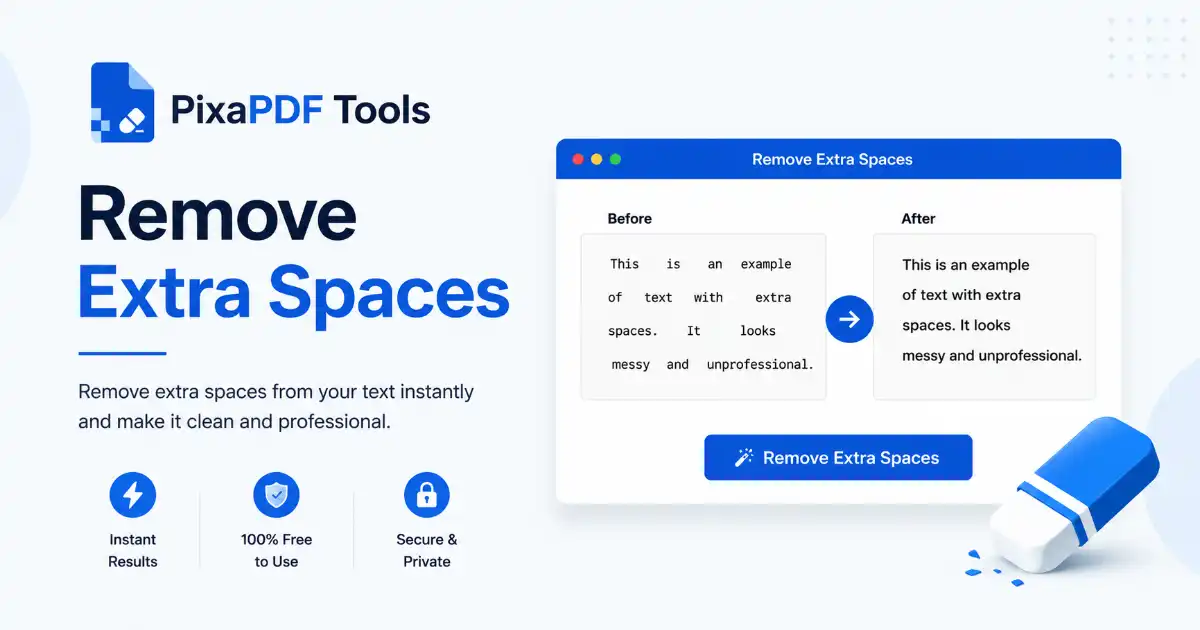
This Remove Extra Spaces tool cleans up pasted text in one click. It collapses runs of spaces and tabs into a single space, trims the edges of every line, and can also delete blank lines.
You paste your text into the box, press Clean Text Now, and the cleaned version replaces what you pasted. A live counter shows the number of words and characters before and after.
It runs in your browser, needs no account, and has no limit on how often you use it.
How to Remove Extra Spaces in Four Steps
- Paste your text: Click inside the box and paste or type. The word and character counts update as you go.
- Decide about blank lines: Tick Remove Empty Lines if you also want the gaps between paragraphs deleted.
- Press Clean Text Now: The cleaning step runs and the text in the box is replaced with the cleaned version straight away.
- Copy the result: Press Copy Result and a short Copied to clipboard message appears. Paste it wherever you need it.
Clear All empties the box, but it asks you to confirm first so you do not lose text by accident.
What the Tool Changes and What It Leaves Alone
Knowing the exact rules helps you trust the output and avoid surprises.
Spaces and Tabs
Any run of spaces or tabs inside a line becomes one space. Three spaces between words turn into one, and a tab character turns into a single space.
The double space people still type after a full stop is reduced to one as well.
Line Edges
The whole text is trimmed first, and then every line is trimmed on its own. Spaces at the start and end of a line disappear.
Lines that end with a Windows style line break are tidied at the same time, because the stray return character is removed with the trailing whitespace.
Empty Lines
By default, blank lines are kept, so paragraph breaks stay where they are. With Remove Empty Lines ticked, the blank lines are deleted and the text becomes one compact block.
What It Does Not Touch
- Non-breaking spaces: These look like normal spaces but are a different character. They are only removed at the very start or end of a line, not in the middle.
- Line breaks: Single line breaks stay in place. The tool never joins two lines into one.
- Words and punctuation: Nothing is spelled differently, reordered, or rewritten.
A Warning About Indentation
Because each line is trimmed, leading spaces are removed. Indented lists, poems, and source code lose their indentation.
If indentation matters, do not run that text through the tool, or clean it in separate parts.
Where Extra Spaces Come From
Most messy spacing is created by the way text travels between programs, which is why people reach for a cleaner so often.
- PDF copying: Text copied from a PDF often carries gaps and broken lines left over from the page layout.
- Chat and email: Forwarded messages pick up extra spaces and trailing blanks.
- Scanned documents: Text recognition software sometimes inserts spaces inside or between words.
- Justified text: Copying from a justified column can bring widened gaps along with it.
- Typing habits: Two spaces after a full stop or a spare space before a comma are easy to miss.
These gaps look small, but they cause real problems in forms, spreadsheets, and search boxes where a trailing space makes two identical entries look different.
Who Uses a Remove Extra Spaces Tool
Students and Researchers
Quotes copied from journals and e-books usually arrive with odd spacing. Use this cleaner to clean them before you paste them into an essay so your formatting stays consistent.
Writers and Editors
A quick pass with the tool removes double spaces after full stops and stray spaces at line ends before a manuscript goes to a publisher or a blog.
Marketers and Social Media Managers
Captions, product descriptions, and ad copy often pass through several hands. A quick pass with this cleaner makes the final text look tidy on every platform.
Developers and Data Teams
A trailing space at the end of a username, a product code, or a list item can break a lookup or a comparison. Cleaning a list of values before you import it prevents those silent errors.
Remember the indentation warning above, though. Do not use the tool on code where the leading spaces are meaningful.
Reading the Word and Character Counts
When you clean a passage, the Words counter splits your text wherever there is whitespace, so two words separated by many spaces still count as two. That means the word count usually stays the same after cleaning.
The Characters counter counts everything, including spaces and line breaks. This number is the one that drops when extra spaces are removed, and it shows you how much clutter was in the text.
For a deeper count with reading time and sentence statistics, try our Word Counter.
A Quick Remove Extra Spaces Example
Here is a messy line as it might arrive from a copied email: three spaces after a name, a tab, and two spaces after the full stop.
Before cleaning, the line reads: Hello Sam,[tab]thanks for the file. See you Monday.
After cleaning it with the tool, it reads: Hello Sam, thanks for the file. See you Monday.
The words are identical. Only the gaps changed, and the character count drops by the number of spaces that were deleted.
Why Clean Spacing Matters
It Looks More Professional
Uneven gaps make a document look careless, even when the writing is excellent. A quick pass with this cleaner gives every paragraph the same even rhythm.
It Helps Search and Matching
Computers compare text character by character. The name Ali followed by a space is not the same as Ali on its own, so searches, filters, and lookups can miss it.
Cleaning a list before you use it avoids those near misses and keeps your records consistent.
It Makes Import Easier
Spreadsheets, databases, and mail merge tools often read values exactly as typed. A stray space in a column of email addresses or order numbers can cause a rejected row.
Run a column of values through the tool, then paste the clean list back into your file.
Use Cases for Everyday Text
- Email drafts: Tidy a forwarded message before you reply so the quoted text lines up.
- Social captions: Tidy a caption you assembled from several notes.
- Product listings: Clean descriptions copied from supplier sheets before you publish them.
- Form entries: Prepare names, addresses, and codes so forms accept them first time.
- Study notes: Clean lecture notes copied from slides so your notes read smoothly.
- Subtitles and scripts: Clean up spaces and blank lines before you load text into a video editor.
Good Writing Habits After Cleaning
A tool can fix the gaps, but a few habits stop them from coming back.
Type one space after a full stop, set your word processor to show formatting marks while you edit, and avoid using the space bar to line things up. Use tabs or tables for alignment instead.
When you copy from a PDF, paste into a plain text editor first, then bring the text here for a quick clean before the final paste.
Tips to Remove Extra Spaces Cleanly
- Keep a copy: The cleaned text replaces the original in the box and browsers often cannot undo the change, so save the original somewhere first.
- Clean in the right order: Clean the spacing first, then change the case or add styling. Our Text Case Converter works well as the next step.
- Use the empty lines option on purpose: Leave it off for essays and articles that need paragraph breaks. Turn it on for lists and data.
- Check the ends: Scroll to the start and end of the cleaned text to confirm nothing was lost.
- Work in sections: For very long documents, clean one chapter at a time so you can review each result.
If you need placeholder text to test a layout, our Lorem Ipsum Generator can create it.
If Something Does Not Look Right
- A gap is still there: It may be a non-breaking space or another special space character. Retype that one gap by hand.
- Nothing seems to change: Check that the text actually contains runs of spaces. Single spaces are left alone, which is correct.
- Copy Result does nothing: The button needs some text in the box. If your browser blocks copying, select the text and press Ctrl+C or Command+C.
- Paragraphs disappeared: You probably ticked Remove Empty Lines. Paste the original again and clean it with the box unticked.
- Indentation vanished: Each line is trimmed by design. Restore the indentation from your original copy.
Your Text Stays on Your Device When You Remove Extra Spaces
The cleaning is done by a short script running inside your browser tab. The text you paste is not sent to any server, so contracts, notes, and personal messages stay private.
Close the tab and everything you pasted is gone. For the technical side of how text is searched and replaced in JavaScript, the MDN guide to regular expressions is a good place to start.
Remove Extra Spaces FAQ
Conclusion
A good cleaner saves the tedious job of hunting down gaps by hand. Paste, clean, copy, and carry on with your work.
Keep a copy of your original, mind the indentation warning, and the tool will tidy the rest in a moment.