
Crop Image Easy and Fast Free Online Resize Tool
Professional quality cropping in seconds. Free forever.
Click to upload or Drag & Drop Image
Supports JPG, PNG, WEBP
A Crop Image 100% Free Online Image Resize Tool is the perfect solution for anyone looking to refine their visual content without expensive software. Visuals are the heartbeat of the modern internet: whether you’re building a website, posting on social media, or preparing a presentation, the size and shape of your images matter. This tool keeps your pictures focused on the right subject, optimized for speed, and sized correctly for every platform.
Explore More Tools:
PDF Compressor Image Resizer Background Remover JPG to PNG PNG to JPG PDF to JPGWhat Is a Crop Image 100% Free Online Image Resize Tool?
It’s a web-based utility that lets you remove unwanted outer areas from a photo while also controlling the aspect ratio and resolution of the final output, which matters for keeping your files sharp. It works entirely in your browser, meaning your private images are never uploaded to a server, giving you privacy by design rather than as an afterthought.
Under the hood, this cropper relies on JavaScript and the HTML5 Canvas API to handle large files quickly, which is why it feels lighter than most desktop editors. You can switch between a 1:1 ratio for Instagram or a 16:9 ratio for YouTube thumbnails with a single click.
Why You Need an Online Crop Image Tool
Composition is key in photography. A shot can include distracting elements at the edges of the frame; cropping them out makes the main subject pop and instantly improves the aesthetic value of the image.
Loading speed matters just as much. Large, uncropped images slow down a blog or website, so trimming a photo down to the dimensions it actually needs makes the page lighter, which tends to help both SEO rankings and the experience for your visitors.
Key Features of This Crop Image Tool
- Intuitive Interface: Easy for beginners, powerful for pros.
- Live Preview: See your changes in real-time before you download.
- Multiple Aspect Ratios: Choose from standard presets or use a free-hand crop.
- Browser-Based Processing: Fast, secure, and no installation required.
- High-Quality Output: Images stay sharp after the crop.
Cropping vs. Resizing: What’s the Difference
The two terms get used interchangeably, but they do different jobs. Cropping removes part of an image, cutting away pixels you don’t want and keeping the rest at its original resolution and quality. Resizing keeps the full image but scales it up or down, stretching or shrinking every pixel to fit new dimensions. A photo with a distracting object at the edge needs cropping, not resizing, because shrinking the whole frame would keep the distraction in view, just smaller.
In practice, most projects need both. You might crop a photo to isolate the subject and improve the composition, then resize the cropped result to match the exact pixel dimensions a platform requires. This Crop Image 100% Free Online Image Resize Tool handles the cropping half of that workflow; pairing it with our Image Resizer covers the second step without switching to separate software.
Choosing the Right Aspect Ratio for Your Crop Image Project
Aspect ratio should follow the destination, not personal preference. A square (1:1) crop reads well in a grid of thumbnails or a profile photo, because it’s predictable and doesn’t get cropped further by the platform itself. A wide 16:9 ratio suits video thumbnails and presentation slides, giving enough horizontal room for text overlays without cramming the subject. A 4:3 ratio, closer to how older cameras and many printed documents are framed, still shows up in scanned pages, older photo archives, and some print layouts.
When in doubt, generate a couple of crops at different ratios before deciding. A portrait that looks balanced as a square can feel cramped at 16:9, and a landscape shot that works at 16:9 can lose its main subject when forced into a square. A few seconds of testing avoids having to redo the crop later once you notice it doesn’t fit where you meant to use it.
Common Crop Image Mistakes to Avoid
Cropping too tight is the most common mistake: shaving off a person’s fingertips, the top of a head, or the edge of a logo makes an image look accidental rather than intentional. Leaving a small margin around the subject, even a few pixels, usually reads better than cutting exactly at the edge. The opposite mistake, cropping too loosely, leaves distracting background elements in frame that pull attention away from the subject the crop was supposed to highlight.
Another frequent issue is cropping an already-small image down further and then trying to display it at a large size. Cropping removes pixels permanently, so a small photo cropped tightly can end up too low-resolution for its intended use. Using the Crop Image 100% Free Online Image Resize Tool on the highest-resolution original you have gives the crop room to breathe without running into pixelation later.
Cropping for Print vs. Screen
A crop that looks complete on a screen can feel oddly tight once it’s printed, because printers typically trim a small margin off the outer edge of the page during finishing. Anything meant for print benefits from a slightly looser crop than you’d use for the web, leaving a bleed area so nothing important gets cut off in the final trim. Screen-only images don’t have this concern, since there’s no physical trimming step, so a tighter crop is usually safe.
Resolution requirements also diverge. Web images generally only need to be as large as they’ll display, often well under 2000 pixels wide, while print work typically needs 300 pixels per inch at the final printed size, which can mean a much larger source file. Cropping first with this Crop Image 100% Free Online Image Resize Tool, then checking the resulting pixel dimensions against your intended print size, helps catch a resolution shortfall before it becomes a problem at the print shop.
How to Use the Crop Image 100% Free Online Image Resize Tool
Getting started is simple. Follow these steps for the best results:
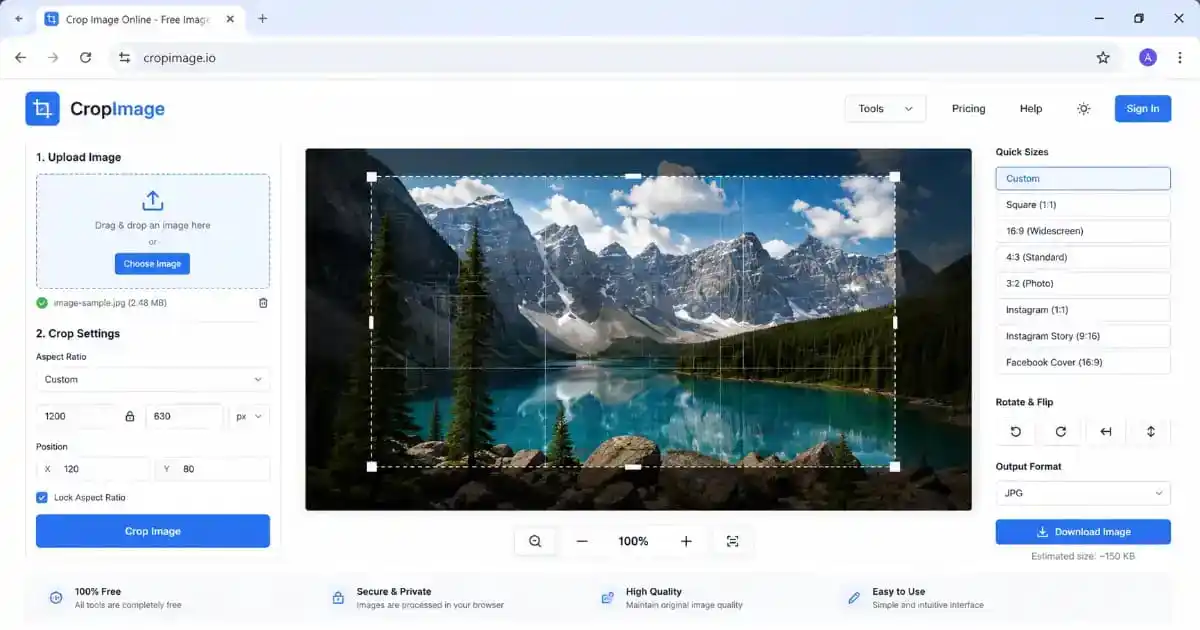
- Upload Your Image: Drag and drop your JPG, PNG, or WEBP file into the box above, or click to browse your computer.
- Adjust the Crop Area: Use the handles on the image to select the portion you want to keep. You can move the box around easily.
- Select an Aspect Ratio: If you need a specific shape, like a square for profile pictures, choose the corresponding ratio button.
- Zoom In or Out: Use the zoom buttons if you need to focus on a small detail within a large photograph.
- Crop and Save: Click “Crop & Download” and the tool processes the file and saves it to your device.
Benefits of Professional Crop Image Editing
A dedicated cropping tool offers real advantages over rough screenshot edits: it preserves the color profile of your images and handles pixels correctly, avoiding the blurring effect that comes from low-quality editors.
It’s also accessible from any device. Whether you’re on a Mac, Windows, or an Android phone, this Crop Image 100% Free Online Image Resize Tool works the same way, so you can edit images wherever you happen to be.
Use Cases for Different Users
For Social Media Managers
Social platforms have strict requirements: Instagram favors squares, while X (Twitter) prefers horizontal layouts. This tool lets you create all these variations from one source image in seconds.
For Bloggers and Web Developers
Large, uncropped images are one of the most common causes of slow websites. Bloggers can use this Crop Image tool to fit images into their post layouts perfectly without breaking the site’s design, and can visit our PNG to JPG tool to further optimize blog images afterward.
For Students and Researchers
If you’re capturing charts or diagrams for a thesis, this Crop Image tool helps you isolate the data you need, which makes academic papers look clean and professional.
Mastering Image Composition with This Crop Image Tool
Cropping isn’t just about cutting off the edges of a photo; it’s about storytelling. Every time you frame a shot, you’re deciding what the viewer should focus on. Professional photographers often use the “Rule of Thirds” to create balance, aligning a subject with imaginary grid lines to create a more compelling look. A small crop adjustment can turn a standard snapshot into something closer to intentional design.
It’s also worth experimenting with orientation. A horizontal photo sometimes works better as a vertical one, especially for mobile-first platforms like TikTok or Instagram Stories, and switching between the two takes only a click.
Why File Formats Matter During Cropping
JPG files suit photographs with lots of color but use lossy compression, while PNG files are better for logos because they support transparency. If you need to convert files before or after cropping, our JPG to PNG and PNG to JPG tools are available to help balance quality against file size.
WEBP is also supported, offering strong lossless and lossy compression for the web. Cropping an image down and saving it in the right format together keep visitors from waiting on files that are heavier than they need to be.
The Impact of Cropping on SEO and Core Web Vitals
Google’s Core Web Vitals have made image sizing more important than ever. Oversized images can trigger Cumulative Layout Shift (CLS) or slow down Largest Contentful Paint (LCP), two metrics that directly affect search ranking, as described in Google’s Web Vitals documentation. Pre-sizing an image to the exact dimensions your layout needs means the browser never has to resize it on the fly, which noticeably improves performance scores.
Trimming unnecessary pixels makes a page lighter overall. Paired with our Image Resizer, you can make sure every visual on a page is tuned for speed, since faster pages generally see lower bounce rates and better conversion.
Privacy in the Age of Online Editing
A common concern with online editors is data privacy — many upload files to a remote server where they may sit for days. This Crop Image 100% Free Online Image Resize Tool is built the other way around: cropping and resizing happen directly in your browser’s memory using JavaScript and HTML5 Canvas, so sensitive business documents or personal photos never leave your device.
Optimizing for Social Media with Precision
Every social platform has its own preferred image dimensions. This tool helps you hit those targets consistently:
- Instagram: 1:1 for feed posts, 4:5 for portraits to take up more screen space.
- YouTube: 16:9 for thumbnails that look professional and attract clicks.
- LinkedIn: banners need a specific horizontal crop, achievable with free-hand mode.
- Facebook: profile pictures need to be square, a five-second task with this tool.
Consistent branding across platforms starts with consistent image sizing. If a logo or product shot gets cut off in someone’s feed, it reflects poorly on the brand, so it’s worth double-checking that key content stays inside each platform’s safe zone.
Beyond Cropping: Cleaning Up Your Workspace
Cropping is often just the first step. If a busy background distracts from the subject, try our Background Remover after using this Crop Image tool. Combining the two lets you build studio-quality product images for e-commerce listings without paying for a professional editor. For document-based images, our PDF Compressor can shrink the final results down to something email-ready.
Best Practices for Crop Image and Resizing Work
Always start from the highest-resolution original available. You can make an image smaller without much loss, but enlarging it significantly tends to introduce pixelation. Keeping the original pixel aspect intact while focusing the crop on what matters is usually the better trade-off. For further technical background, see W3C Graphics and MDN’s guide to image formats.
Frequently Asked Questions
Is the Crop Image 100% Free Online Image Resize Tool really free?
Yes, it’s completely free with no hidden charges, watermarks, or daily limits, and it’s designed to be accessible to everyone.
Will my image quality drop when using the tool?
No. It uses high-quality canvas rendering to keep your image as sharp as the original, prioritizing pixel integrity throughout.
Is my data safe during the cropping process?
Yes. Everything processes locally in your browser. Your images are never seen by us and are never stored on any server.
What formats does the tool support?
The most common web formats: JPG, PNG, and WEBP. Upload any of these and download the result in high resolution.
Conclusion
This Crop Image 100% Free Online Image Resize Tool combines speed, simplicity, and real editing power in one interface, without the overhead of installing desktop software. Whether it’s for a business presentation, a social post, or a personal photo, it keeps your images sized right and looking their best.
Need more file conversion options? Check out our PDF to JPG converter to extract images from documents.