
Crop PDF Easy Online Fast & Secure PDF Resize Tool
Refine your documents with our pro-grade, browser-based cropping engine. No uploads, no signup, 100% private.
Drop your PDF here or click to upload
Files are processed locally, never uploaded to any server
Your PDF never leaves your device
Why Crop PDF Matters
Crop PDF is a browser-based tool for professionals and students who need to adjust a document’s layout instantly. Managing digital documents often means dealing with inconsistent margins, unwanted headers, or oversized page dimensions, and cropping lets you keep the page focused on the information that actually matters.
Whether you’re preparing a book for a Kindle or trimming margins from a scanned legal report, Crop PDF gives you the precision to define exactly what stays on the page.
Unlike platforms that require uploading sensitive documents to a remote server, this tool performs all the processing locally in your browser, so your personal and corporate data never leaves your computer. That matters for anyone who regularly handles confidential files, including when you Merge PDF documents into one report before sharing.
No file size queue: because there’s no server to wait on, a 200-page scanned report processes at the same speed as a single-page document, limited only by how much memory your own device has to work with.
Why You Need Crop PDF
Crop PDF exists because oversized documents with wide blank margins are a real distraction, especially on a phone screen. Cropping strips away that unused space, which improves the reading experience and makes the document look more deliberate.
Standard PDF viewers don’t usually let you change the page size at all. This tool bridges that gap by adjusting the file’s internal page metadata, resizing pages toward standard formats like A4 or Letter without touching image or text quality. If you’re preparing a large file for email afterward, our PDF Compressor can shrink it further.
Many users first Split PDF documents into individual chapters, then crop each section separately for finer control over a large, multi-page volume.
Efficiency in Educational and Corporate Workflows
Academic journals often ship with wide sidebars meant for printed notes, which makes reading on a tablet difficult. Removing those borders lets the text render larger, which helps with concentration and eye strain during long study sessions.
Internal reports sometimes carry leftover artifacts along the edges from scanning or exporting. Cropping those out before a presentation gives the document a cleaner look, and our Add Watermark tool can brand it afterward.
Crop PDF Features
The manual selection box lets you highlight exactly what you want to keep, which matters for technical drawings or architectural blueprints where every millimeter of the layout counts.
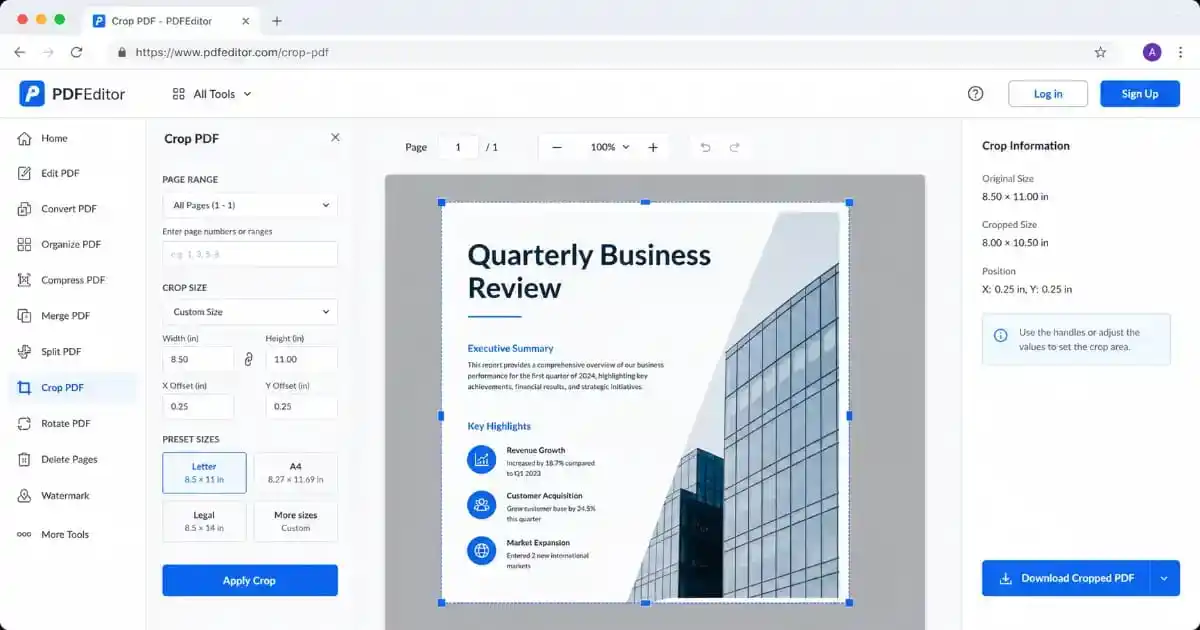
- Visual Drag-and-Drop Crop Selection: Draw your crop area directly on the PDF preview with mouse or finger. Drag any of the four corner handles to resize with precision.
- Snap to Content (Auto-Detect): Automatically detect the content boundary of the page and snap the selection box to remove only blank margins, ideal for scanned documents.
- Page-by-Page or Batch Cropping: Choose to apply the crop selection to all pages at once or only the currently previewed page. Perfect for multi-page reports with varied layouts.
- Rotate Before Cropping: Scanned documents are often uploaded sideways. Rotate left or right by 90 degrees before applying your crop to ensure correct orientation.
- Zoom Controls: Zoom in for precise selection of detailed regions. Zoom out to see the full page layout before committing to a crop area.
- Multi-Page Navigation: Browse through every page of your PDF using the Previous and Next buttons, so you can preview how each page will look after cropping.
- No Quality Loss: Cropping adjusts only the visible area (CropBox/MediaBox metadata). Images and text inside the PDF are never re-compressed or degraded.
- One-Click Download: After cropping, click the green download button and your new PDF saves directly to your device in seconds.
Choosing “All Pages” applies your crop selection to the entire document at once, which saves hours of manual repetition on long files. Once cropping is complete, our Add Page Numbers tool can add navigation numbering.
Compatibility with Different Document Formats
Because PDF is a standard file format, this tool doesn’t care what created the file in the first place. A page exported from Word, a report generated by accounting software, a scan captured with a phone camera app, and a file exported from InDesign all use the same MediaBox and CropBox structure underneath, so the crop selection behaves identically regardless of the original source. You can use our Merge PDF tool to combine multiple files before a final crop, and our Protect PDF tool to lock the finished document afterward.
How to Use the Crop PDF Tool, Step by Step
Follow these five steps for a clean result every time.
- Upload your PDF: Click the upload zone or drag and drop your PDF file directly onto it. A live preview of the first page appears instantly, powered by the industry-standard pdf.js library.
- Navigate pages: Use the Previous and Next buttons to browse your document. Check how each page looks before committing to a crop area.
- Draw your crop selection: Drag the blue selection box to position it over the area you want to keep. Drag any of the four corner handles to resize the box precisely. The live coordinates display shows the exact crop dimensions.
- Choose apply mode: Select “All Pages” to apply the same crop to every page, or “Current Page Only” for page-specific adjustments. Use Snap to Content for automatic margin detection on scanned documents.
- Crop and download: Click the green “Crop & Download PDF” button. The tool processes your file in your browser instantly and triggers a download of your perfectly cropped PDF.
In some cases, documents might have sensitive watermarks after cropping. You can use our Remove Watermark tool to finalize appearance, or unlock password-protected files first with our Unlock PDF tool before uploading here.
Crop PDF and Global PDF Standards
Files processed by Crop PDF stay fully compliant with the PDF international standard, so a cropped PDF looks identical on every device, reader, and operating system.
Crop PDF relies on a real standard here. The ISO 32000 PDF specification actually defines two separate boxes on every page: the MediaBox, which is the full original page canvas, and the CropBox, which is the smaller display and print window drawn inside it. This tool only redraws the CropBox boundary, so nothing about the page’s underlying structure is converted or rebuilt.
For a deeper look at how PDF page geometry actually works, see the Adobe PDF specifications documentation and the MDN Canvas API reference, which powers the preview rendering on this page.
Real-World Use Cases for Crop PDF
People reach for Crop PDF in a range of situations. Lawyers often need to trim sensitive edge-based timestamps without opening complex software, and graphic designers use the same crop to clean up bleed marks from a portfolio before a digital presentation.
Crop PDF also helps e-reader users. Most PDFs are laid out for A4 paper, which makes the text tiny on a small e-reader screen. Removing the margins lets the same text render noticeably larger on a Kindle or similar device.
- Academic Papers: Remove wide printed margins and sidebars from journal PDFs before reading on tablets or e-readers.
- Legal Documents: Trim court filing timestamps, page borders, and header artifacts from scanned legal pages before redistribution.
- Scanned Books: Remove dark scanner edges and backing shadows that appear around the page content in scanned book pages.
- Architectural Plans: Crop technical drawings to isolate specific sections, such as a floor plan, detail view, or legend, without rebuilding the document.
- Marketing Materials: Remove printer bleed marks and color bars from final digital proofs before sending to clients.
- Business Reports: Clean up inconsistently sized pages from merged reports and standardize them to a uniform layout.
- Presentations: Crop exported slide PDFs to remove blank borders and make them fill the screen more effectively during digital viewing.
Fitting Crop PDF Into a Document Workflow
Cropping works best as one step in a complete document pipeline. Here’s how the free tools on PixaPDF fit together around it.
Step 1: Merge or Split Your Documents First
Before cropping, organize your document. Use our Merge PDF tool to combine multiple source files into one, or use our Split PDF tool to extract only the pages you need. Working with a clean, focused document makes cropping much easier and more accurate.
Step 2: Rearrange Pages if Needed
If your document pages are in the wrong order after merging, use the Rearrange PDF tool to drag pages into the correct sequence before applying a crop. This ensures your batch crop produces a correctly ordered final document.
Step 3: Crop PDF
Define the exact page boundaries you want. Apply the same crop to every page for consistency, or set it page by page for a document with varying layouts.
Step 4: Compress, Protect, and Finalize
After cropping, your document is ready for final delivery. Use our PDF Compressor to reduce file size for email or web upload. Add a security password with our Protect PDF tool for confidential documents. Or add your company branding with the Add Watermark tool.
Pro Tips for Using Crop PDF
A little know-how with Crop PDF goes a long way here. These are the habits that produce a consistently clean result.
- Use Zoom In for precision: Before drawing your selection, zoom in to the area you want to crop. A zoomed view helps you position the handles accurately on fine details like thin borders or close-together columns.
- Always preview all pages first: Use the page navigation buttons to check every page before downloading. Pages in a scanned document may have slightly different content boundaries, so a crop that works on page 1 might cut into content on page 5, unless you check first.
- Use Snap to Content on scanned docs: The auto-detect feature analyzes the page and automatically removes blank margins. It is especially powerful for scanned books and photocopied documents where margins are consistently white.
- Rotate before you crop: If your document is sideways, always rotate it first and then reposition your selection. Cropping a rotated document without correcting orientation first produces unexpected results.
- Apply “Current Page Only” for mixed layouts: Reports that combine portrait and landscape pages need page-by-page cropping. Select “Current Page Only” mode and crop each differently-sized page individually.
- Keep a backup: Although our tool never modifies the original file in your browser’s memory, always keep a backup copy of the original PDF before downloading the cropped version. This lets you restart with different crop parameters if needed.
Using Crop PDF on Any Device
Crop PDF works the same way everywhere. On desktop, a mouse gives you the most precise control over the selection box and its four corner handles, which matters for pixel-level accuracy on technical documents. On a tablet, all four handles are sized for finger interaction and the controls panel stacks above the preview automatically. On a phone, the layout stacks with controls on top and the page below; precision work is easier on a larger screen, but straightforward margin-trimming works fine either way.
More Free PDF Tools from PixaPDF
Merge PDF Split PDF Rearrange PDF Compress PDF Add Page Numbers Add Watermark Remove Watermark Unlock PDF Protect PDF
Helpful External Resources
ISO 32000: Official PDF International Standard Specification Adobe PDF Specifications and Technical Documentation MDN Canvas API ReferenceFrequently Asked Questions
Is Crop PDF really 100% free?
Yes. This tool is completely free to use. There is no registration, credit card, or subscription, no hidden fees, and no watermark added to your output.
Will I lose image quality or resolution when cropping?
No, the pixels themselves are untouched. One nuance worth knowing: a small number of older or non-standard PDF viewers ignore the CropBox entirely and always display the full MediaBox, so if a cropped file ever looks uncropped in an unusual viewer, that viewer is the cause, not a flaw in the file itself.
Is my data secure? Does the file get uploaded to a server?
Yes. Even the page preview you see while cropping is rendered locally by the pdf.js library running in your browser tab. The only network activity involved is your browser loading this page’s own code when you first open it; your actual document is never part of that traffic, never stored remotely, and never seen by anyone but you.
Can I crop only specific pages, not all pages?
Yes. Use the “Apply Crop To” dropdown to select “Current Page Only” instead of “All Pages.” Navigate to the page you want, position your selection, then download; the remaining pages keep their original dimensions.
Can I crop a password-protected PDF?
You first need to remove the password. Use our free Unlock PDF tool, then upload the unlocked file here for cropping.
What browsers and devices does this tool support?
All modern browsers, including Chrome, Firefox, Safari, and Edge, on Windows, Mac, Linux, iOS, and Android. Touch interactions are fully supported on mobile and tablet.
What should I do after cropping to reduce file size?
Use our free PDF Compressor afterward. Cropping alone does not shrink file size, since the trimmed content still exists in the file’s metadata; compression removes it properly.
Crop PDF: Conclusion
Taking control of a document’s layout shouldn’t require expensive software. Crop PDF gives students, lawyers, designers, and e-reader users the same precision, entirely free.
It gives you a visual drag-and-drop crop selection, four-corner resize handles, auto-detect snap-to-content, page-by-page or batch apply, rotation, zoom, and a one-click download, all free, all in your browser, and all without sending your document to a server.
Once your document is cropped, the rest of the PixaPDF suite covers the rest of the workflow: Merge PDF, Split PDF, Rearrange PDF, Protect PDF, and PDF Compressor, all free and all running in your browser.
Scroll back to the top, upload your PDF, and try Crop PDF for yourself, it takes less than a minute.