
Excel to PDF Converter
Convert your XLSX or XLS spreadsheet into a PDF. Free, fast, real conversion.
Click to upload or drag and drop
.XLSX or .XLS — max 25MB
An Excel to PDF converter turns a spreadsheet you built for editing into a fixed document you can share without worrying that someone will change a number or break a formula.
This tool takes your .xlsx or .xls file, sends it to our server for conversion, and gives you back a PDF that keeps the layout, tables, and formatting you already set up in Excel.
What Does This Excel to PDF Converter Do?
This Excel to PDF converter reads your spreadsheet file and rebuilds it as a static PDF page, cell by cell. Unlike printing a spreadsheet straight from Excel, which often cuts columns off awkwardly, the conversion is handled by a dedicated process built specifically for turning grid-based data into a readable document.
The result is a file that looks the same no matter who opens it or what software they have installed. A recipient without Microsoft Excel can still view your data exactly as you intended, using nothing more than a PDF reader or a web browser.
XLSX vs. XLS: Does the Format Matter to This Excel to PDF Converter?
Excel has used two main file formats over the years. The older .xls format stores data in a compact binary layout. The newer .xlsx format, introduced with Office 2007, is actually a zipped collection of XML files describing the sheet, styles, and structure.
This Excel to PDF converter accepts both, so you don’t need to resave an older .xls file before uploading. Microsoft keeps a full breakdown of which file formats Excel supports if you want the technical background on how the two differ.
In practice, the format rarely changes what this Excel to PDF converter produces. What matters more is how the sheet itself is laid out, since column widths and print areas carry over regardless of whether the source file is .xls or .xlsx.
Why Convert a Spreadsheet to PDF?
A spreadsheet is easy to edit, which is exactly the problem when you want to share one. Anyone who opens an .xlsx file can accidentally change a formula, hide a row, or resize a column before forwarding it on. A PDF freezes that data so what you send is what the other person sees.
Your file is sent to our server over an encrypted connection, converted, and then automatically deleted afterward. Nobody at PixaPDF Tools opens or reviews the contents of your spreadsheet. Full details are in our Privacy Policy.
Speed also matters here. There’s nothing to install and no software to open, so converting a budget sheet or a client report takes seconds rather than minutes, whether you’re at a desktop or on a phone.
Step-by-Step Guide to Using This Excel to PDF Converter
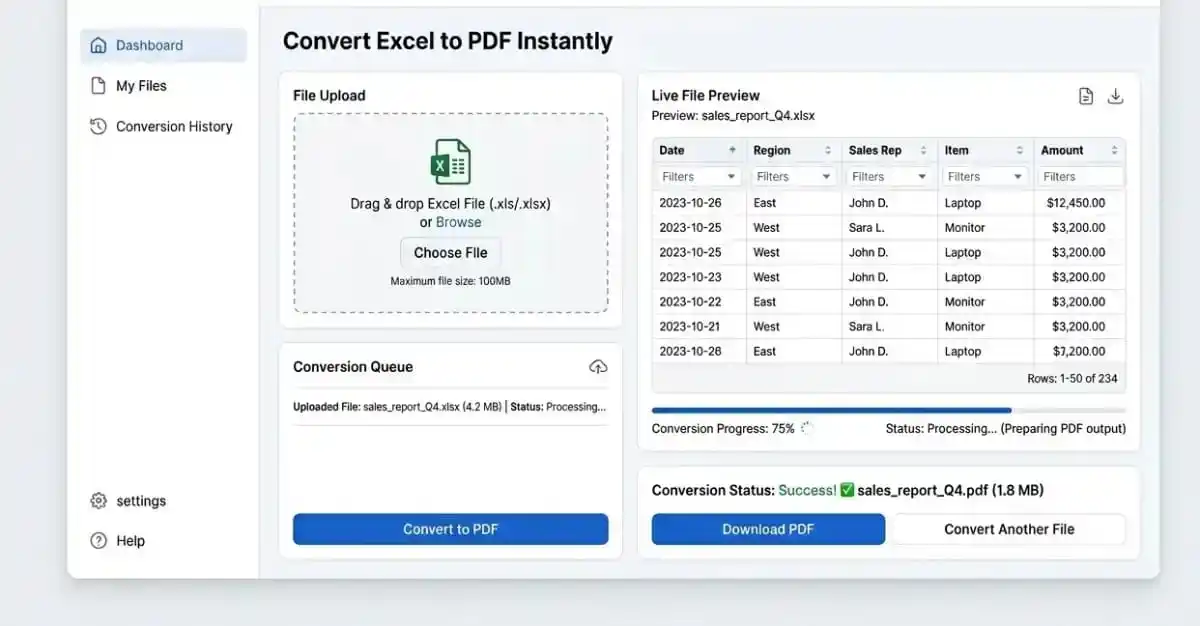
- Click the upload box above, or drag your .xlsx or .xls file directly onto it.
- Check that the correct filename appears before continuing.
- Click the “Convert to PDF” button and watch the progress bar.
- Once conversion finishes, your PDF opens in a preview panel and the download starts automatically.
- Use the “Download PDF” button in the preview if you need to save the file again.
If your file doesn’t upload, double check it’s a genuine .xlsx or .xls file under 25MB. A file renamed to the wrong extension, or one that’s actually corrupted, will be rejected before it reaches the server.
Benefits of Converting Excel Files to PDF
The biggest benefit is consistency. The same spreadsheet can look different depending on which version of Excel, or which operating system, opens it. A PDF removes that variability, so the layout your client sees on their screen matches what you designed.
PDFs are also far more printer-friendly. Anyone who has printed a wide spreadsheet knows the frustration of a few columns spilling onto a second page. Converting first lets you check the pagination before it becomes a physical printing problem.
Recipients also can’t casually edit a PDF the way they could an Excel file, which matters when you’re sending a finished report rather than a working document. If you need to combine several converted reports into one file afterward, our merge PDF tool can join them together.
Why a PDF Looks the Same on Any Device
A PDF is a page description format. It doesn’t just store your data, it stores the exact position of every letter, line, and image on the page, the same way a printed page would.
That’s the core reason this Excel to PDF converter is useful in the first place. A spreadsheet depends on the software reading it to lay things out correctly, while a PDF carries its own layout instructions.
The page looks identical whether it’s opened on a phone, a laptop, or printed at a copy shop. Wikipedia’s overview of the PDF format covers the technical history if you’re curious how this became the standard for document sharing.
This is also why a converted spreadsheet is safe to email as a final version. Nothing about how the recipient’s device is configured will change what they see.
Common Use Cases for This Excel to PDF Converter
Freelancers and small business owners often build invoices in Excel and convert them to PDF before sending, since a PDF invoice looks more finished and can’t be casually altered by the client.
Students use this for the same reason teachers ask for it: a data table built in Excel needs to be submitted alongside a written assignment as one document, rather than as two separate files in two different formats.
In offices, monthly reports, budget summaries, and inventory lists are frequently maintained in Excel for the calculations, then run through an Excel to PDF converter the moment they’re ready to be shared with people outside the team who only need to read the numbers, not edit them.
Converting for Printing vs. Converting for Digital Sharing
Not every use of this Excel to PDF converter has the same goal. If you’re printing the result, check your page orientation and margins in Excel first, since a wide table often needs landscape orientation to avoid getting cut off.
If the PDF is only going to be viewed on screen, orientation matters less, but file size does. A spreadsheet packed with large embedded images will produce a larger PDF, which can be slow to email or upload elsewhere.
Knowing which case you’re in before you run the Excel to PDF converter saves a second round of adjustments. A report headed to a printer and a report headed to an inbox often need slightly different preparation in the source spreadsheet.
What Happens to Your File During Conversion
When you click “Convert to PDF,” your spreadsheet is uploaded to our server, where it’s processed and turned into a PDF. The generated file is handed back to your browser for preview and download.
Your original spreadsheet and the converted PDF are both deleted from our server automatically after processing, generally within 24 hours and often much sooner. We don’t keep copies, and no one reviews your data manually.
If your spreadsheet contains sensitive figures, such as payroll or client financial data, it’s worth knowing this before you upload, and our Privacy Policy spells out exactly what is and isn’t retained.
What This Excel to PDF Converter Can’t Do
This tool converts the visible contents of your spreadsheet. It doesn’t preserve interactive elements like macros, form controls, or live links back to other workbooks, since none of those carry over into a static document.
Password-protected Excel files need to have the password removed before uploading. The converter can’t open an encrypted file on your behalf, so if your spreadsheet is locked, unlock it in Excel first and then upload the unprotected copy.
Files above 25MB won’t be accepted. If your workbook is close to that limit, removing unused sheets, compressing embedded images, or deleting unnecessary formatting is usually the fastest way to bring it under the cap.
Should You Convert Early or Convert Last?
A common mistake is converting a spreadsheet to PDF too early, before the data is actually final. Once it’s a PDF, it isn’t editable, so any correction means going back to the original spreadsheet and running this Excel to PDF converter again.
The simplest habit is to treat the Excel file as the working document and the PDF as the finished output. Keep editing the spreadsheet until you’re genuinely done, then convert once.
For a report you generate on a regular schedule, such as monthly figures, always convert a fresh export rather than editing an old PDF by hand. Reusing last month’s PDF and changing a few numbers manually is where copy-paste mistakes creep in.
Online Converter vs. Desktop Software
Desktop programs like Microsoft Office can export a spreadsheet to PDF too, but that requires having the software installed, licensed, and updated. This tool works the moment you open the page, on any device with a browser.
Cross-platform differences are also common with desktop software. A file that looks right on Windows can render slightly differently on macOS due to font substitutions. Converting through a single, consistent process online avoids that inconsistency.
This service is free to use, supported by advertising rather than a subscription, which is why we can offer it without an account or a paywall.
Tips for Better Results Before You Convert
Check your spreadsheet for hidden rows or columns before converting. Hidden data doesn’t disappear when you convert; if it’s not deleted, it can still affect page breaks or pagination in the final PDF.
Set a print area in Excel first if your sheet has more data than you actually want in the PDF. Excel’s own print area setting carries over and helps the converter understand which cells matter.
Extremely wide sheets with many columns can end up with small, hard-to-read text once flattened into a page-sized PDF. If that happens, consider splitting the data across separate sheets before converting, or use our split PDF tool afterward to pull out just the sections you need.
Using This Excel to PDF Converter for Recurring Reports
If you generate the same type of report every week or month, such as a sales summary or an expense sheet, it helps to keep one master spreadsheet template rather than rebuilding it from scratch each time.
Update the numbers in your existing spreadsheet, then run it through this Excel to PDF converter fresh each cycle. This keeps the formatting consistent across every report you send, since the layout comes from the same source file every time.
Naming each converted file with the date or reporting period, rather than reusing a generic name like “report.pdf,” also makes it far easier to find the right version later when you or a colleague needs to look back at a past month.
Frequently Asked Questions
Will my formulas be visible in the PDF?
No. This Excel to PDF converter renders the calculated results of your formulas, not the formulas themselves. The PDF shows the numbers and text your spreadsheet displays, not the logic behind them.
Is there a file size limit?
Yes, files up to 25MB. This covers most everyday spreadsheets. If your file is close to that limit, removing embedded images or unused sheets usually helps bring it down.
Can I convert a password-protected Excel file?
Not directly. Remove the password in Excel first, save an unprotected copy, and upload that version to this Excel to PDF converter.
Does this work on Mac, Windows, and Linux?
Yes. Since the tool runs in your browser and the conversion happens on our server, it works the same way regardless of your operating system.
Does this tool store my spreadsheet?
No. Files are processed and then deleted automatically, generally within 24 hours. See our Privacy Policy for the full detail.
Turning a Spreadsheet Into a Document People Can Trust
Converting a working spreadsheet into a fixed PDF is a small step that solves a real problem: making sure the person you send it to sees exactly what you intended, with nothing accidentally changed along the way.
Use this Excel to PDF converter whenever a spreadsheet is ready to leave your desk and become a finished document.